As I am writing this article today, the InfoPath Forms service in SharePoint Online will stop working in in July, that's only three months away!
If you have InfoPath forms still in production, it's time to move from 'business as usual' to 'panic stations, time to migrate'.
But, as the deadline approaches you don't want to be left with a backlog of IT work to migrate, so acting now is essential for business continuity.
I've written this guide for IT leaders who haven't migrated yet, and are looking for options to migrate InfoPath forms to a suitable replacememt in Microsoft 365 .
How to Choose: The Three Questions IT Leaders Should Ask Before Selecting an InfoPath Replacement
-
Does the data stay in our Microsoft 365 tenancy, or does it leave our security perimeter?
-
Can business users build and modify workflows independently, or will IT own every change request?
-
How long will migration actually take and what is the realistic IT overhead?
5 InfoPath Alternatives Offering Seamless Migration
You see, InfoPath was built for a different era, and is not designed for today’s mobile-first workforce. Not even for the level of automation and visibility organizations now expect from modern process platforms.
Many migrations to InfoPath alternatives focus on recreating the form while leaving the surrounding workflow unchanged. The interface may improve, but approvals still occur over email, and progress is still tracked manually.
When evaluating an InfoPath alternative, the real question is which platform can transform static forms into structured, automated processes within Microsoft 365, with clear routing and accountability built in. In this guide, we review five options based on how well they deliver automation, governance, integration, and long-term scalability.
Before we get into the tools, here’s how we built this list from an InfoPath replacement perspective.
We reviewed product documentation, analyst insights, and customer feedback, focusing on organizations modernizing legacy InfoPath forms in structured or regulated environments. We did not rank by brand popularity.
Instead, we evaluated how well each platform supports a practical transition from InfoPath, including:
- Rebuilding and improving complex forms
- Automating approvals, routing, and escalations
- Capturing audit trails and enforcing governance
- Integrating with Microsoft 365, SharePoint, ERP, CRM, or ITSM systems
We also assessed whether workflow automation is native or requires additional tools.
The table below lists the platforms, their key strengths, and the type of InfoPath replacement scenario they best support, so you can make a faster, clearer decision.
| Tool |
Best for |
Data stays in M365? |
Business users build independently? |
Migration effort for IT |
| Microsoft Power Apps |
Custom applications, technical teams |
Yes |
No, requires low-code skills |
High, rebuild from scratch |
| FlowForma |
Regulated multi-step processes, full migration |
Yes |
Yes |
Low, AI Copilot migrates forms in minutes |
| Microsoft Forms |
Simple surveys and basic requests |
Yes |
Yes |
Very low, but not a true InfoPath replacement |
| Nintex |
Document-heavy HR/legal/procurement |
Depends on config |
Partially |
Medium |
| Crow Canyon |
SharePoint-centric organisations |
Yes |
Yes, no-code |
Medium |
Table showing 5 popular InfoPath alternatives
Now, let us analyze each tool in detail.
1. Microsoft Power Apps
.webp?width=1600&height=573&name=Image%20of%20Power%20Apps%20home%20page%20(1).webp) Microsoft Power Apps homepage
Microsoft Power Apps homepage
Best For: Teams needing customized business applications with deep Microsoft integrations and the technical capacity to support it.
Advice For IT leaders: Although this a logical choice for IT leaders that want to stay within the Microsoft ecosystem, but there are some practical limitations to consider. If you have access to large developer resources this may be the best option for you as you can rebuild your existing forms in Power Apps. Your users, data, and permissions are already there, and the platform connects to over 1,000 Microsoft and third-party services.
But, if you are looking to replace InfoPath forms without the high developer costs and are in need of a fast turnaround, Power Apps won't provide either.
InfoPath vs Power Apps at a glance
|
Area
|
InfoPath
|
Power Apps
|
|
Primary focus
|
Form creation within SharePoint
|
Custom business apps + workflow automation
|
|
User experience
|
Static forms with limited UI flexibility
|
Fully customizable apps (canvas or model-driven)
|
|
Workflow automation
|
Basic rules, often external workflows
|
Integrated with Power Automate for advanced automation
|
|
Integrations
|
Mainly SharePoint and Microsoft stack
|
1,000+ Microsoft and third-party connectors
|
|
Complexity
|
Easier for basic forms
|
More powerful, but may require formulas or expressions
|
|
Licensing model
|
Included in legacy SharePoint
|
Separate licensing that scales with usage
|
Side-by-side overview of Power Apps and InfoPath
Key features of Microsoft Power Apps That Matter While Replacing InfoPath
1. Canvas apps for fully custom interfaces
You can design applications from scratch using drag-and-drop controls. Power Apps gives you the flexibility to recreate and redesign your old InfoPath forms with a more modern user experience, tailored to your business needs.
2. Model-driven apps built on Dataverse
Model-driven apps are generated from your Dataverse data structure. If your InfoPath forms were heavily data-centric, this structured approach can help you standardize logic and enforce consistency across applications.
3. 1,000+ connectors for Microsoft and external services
Power Apps and Power Automate connect to a wide range of Microsoft services and third-party tools. That means you can extend your replacement beyond form capture and integrate workflows across systems without having to build everything from scratch.
4. AI Builder for document and form processing
AI Builder allows you to extract data from documents, recognize form content, and generate predictions based on historical data. If you relied on manual document reviews alongside InfoPath, this can help you introduce more automation into those steps.
Pros and Cons of Microsoft Power Apps
Pros:
- You keep everything within your Microsoft ecosystem.
- Strong no-code capabilities for business users.
- Connects easily with multiple external data sources.
Cons:
- Learning curve for advanced features and data modeling.
- Slow performance with large datasets or complex apps.
- The licensing structure is complex and costly due to Dataverse requirements.
2. FlowForma
.webp?width=1600&height=479&name=undefined-Feb-26-2026-02-23-36-9107-PM%20(1).webp) FlowForma InfoPath migration homepage
FlowForma InfoPath migration homepage
Best For: Businesses with regulated, multi-step processes working within Microsoft 365
Advice for IT Leades: FlowForma is a strong fit if you are looking to stay within the Microsoft ecosystem, but is not suitable if you are looking to move away from Microsoft.
With a dedicated InfoPath migration tool, it is the only vendor with a dedicated solution to 'fast-track' your InfoPath forms replacement.
FlowForma is an AI-powered alternative to InfoPath, built for organizations that need structured, governed workflows rather than standalone forms. It supports the full lifecycle of a process, with built-in approvals, validation controls, compliance safeguards, and complete audit trails.
Rather than managing static forms and disconnected email follow-ups, you can run fully automated workflows inside Microsoft 365 with clear visibility, accountability, and control at every stage.
Infopath vs FlowForma at a Glimpse
Here’s a quick table highlighting the key gaps in Infopath and where FlowForma comes to play:
|
Area
|
InfoPath
|
FlowForma
|
|
Primary focus
|
Form creation and data capture
|
End-to-end process automation
|
|
Workflow & approvals
|
Limited, often reliant on external tools
|
Built-in routing, approvals, SLAs, and escalations
|
|
Automation level
|
Mostly manual after submission
|
Automates actions after submission
|
|
Data quality controls
|
Basic validation
|
Advanced validation and conditional logic
|
|
Document generation
|
Manual copy into Word/PDF
|
Automatic document generation from live data
|
|
Governance & visibility
|
Limited tracking
|
Full audit trails, reporting, and analytics
|
|
Microsoft ecosystem fit
|
SharePoint-based
|
Runs on SharePoint and integrates natively with Microsoft 365
|
Side-by-side overview of Infopath and FlowForma
What FlowForma gives IT leaders that Power Apps cannot
- All form data and workflow history stored in your SharePoint Online tenancy, no data leaves your Microsoft 365 environment
- IT governance dashboard gives administrators control over environments, permissions, and workflow publishing, business teams build within guardrails IT defines
- Azure Active Directory integration means your existing user roles and permissions apply automatically
- ISO 27001 certified, single audit trail for every form submission, approval, and routing decision
Key Features of FlowForma
1. AI-powered process building and automation
.webp?width=1600&height=654&name=undefined-Feb-26-2026-02-25-52-8650-PM%20(1).webp)
FlowForma’s AI-powered innovations
With FlowForma’s AI range, you move from idea to execution without starting from scratch.
With AI Copilot, notes, workshop outputs, or process diagrams can be converted into a structured workflow, which significantly reduces the time required to design new processes.
In addition, AI Agents handle repetitive tasks such as reading documents, extracting key information, validating entries, and feeding structured outputs back into the workflow. As a result, automation does not stall at the design stage.
2. End-to-end workflow engine for approvals and routing
With FlowForma, your forms and your workflow live together. You can set up conditional routing so requests automatically go to the right person. You can define SLAs, trigger escalations, and assign role-based approvals, all within the same system.
3. Forms with validation and conditional logic
.webp?width=1600&height=534&name=undefined-Feb-26-2026-02-35-31-5528-PM%20(1).webp)
FlowForma’s AI-powered forms
FlowForma helps you tighten things up at the source. As someone fills out a form, fields can appear or change based on their answers. Required information can’t be skipped, and validation rules guide users so they get it right the first time. You end up with cleaner data, fewer corrections, and less rework for your team.
4. Document generation from live process data
.webp?width=1600&height=892&name=undefined-Feb-26-2026-02-37-16-6808-PM%20(1).webp) Generate documents automatically with FlowForma’s document generation feature
Generate documents automatically with FlowForma’s document generation feature
You can automatically generate contracts, letters, reports, or certificates using the data already captured in your workflow. Your documents stay aligned with the process, and your team saves hours of manual effort.
5. Audit trails, reporting, and analytics for compliance
FlowForma automatically time-stamps and tracks every submission, approval, decision, and update. You can search that history, pull reports, and support compliance reviews without digging through emails.
At the same time, analytics show you where your processes slow down, so you can improve them over time.
6. Native Microsoft 365 and SharePoint fit with IT oversight
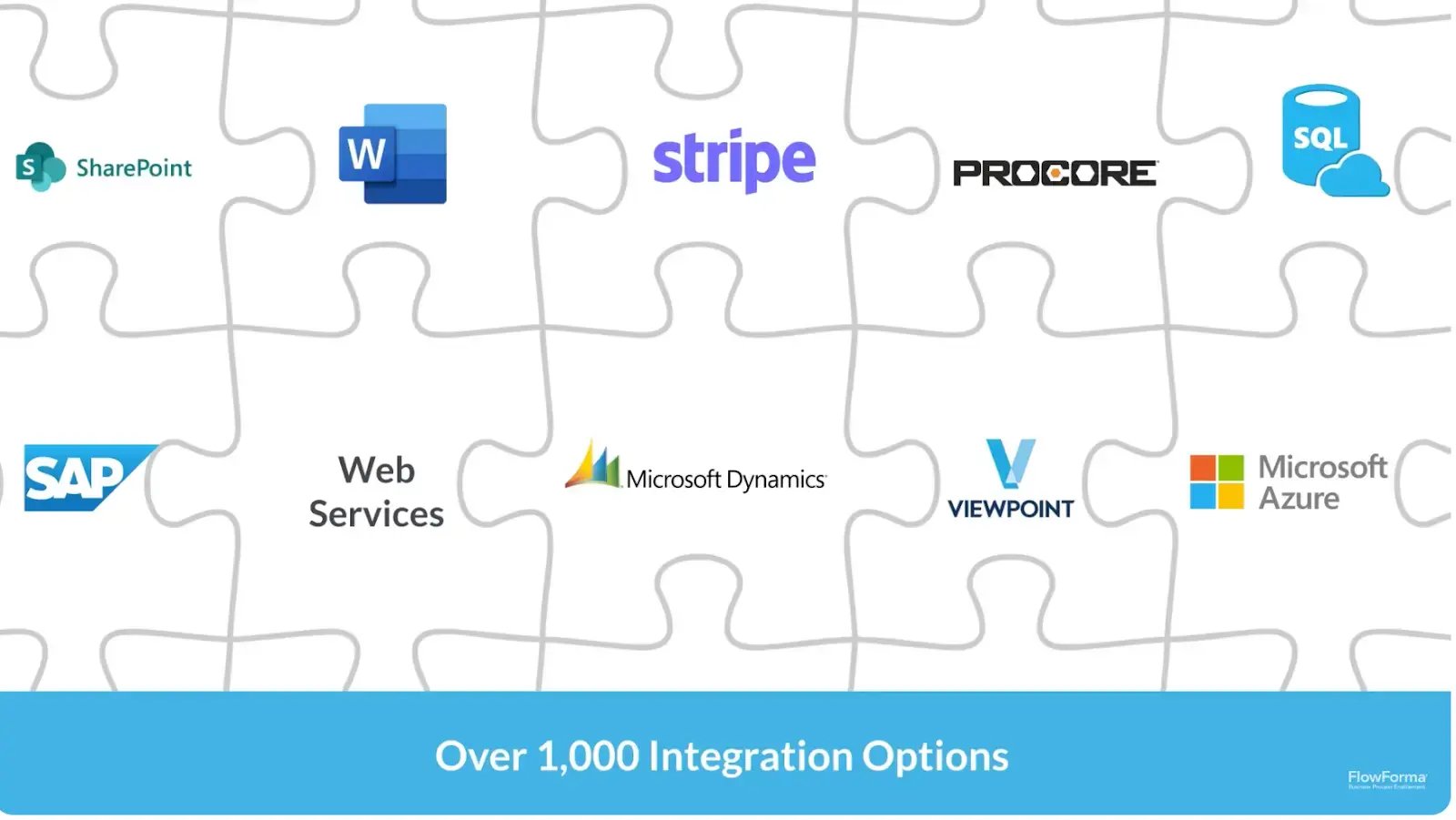 A look at how FlowForma integrates with other platforms
FlowForma runs on SharePoint and works with Microsoft 365, so your workflow data stays inside your tenant. Business teams can build and manage processes, while IT maintains oversight of security, compliance, and governance.
FlowForma's Pros and Cons
FlowForma has earned strong feedback from enterprise users who value its ability to turn complex, multi-step processes into structured no-code workflows.
Pros:
- Enables business users to design and modify workflows without heavy reliance on IT.
- Improves coordination and visibility across departments and shared operations.
- Reduces manual errors through standardized steps, required fields, and documentation controls.
- Drives measurable productivity gains in high-volume, regulated environments.
Like any platform, however, it comes with trade-offs. Understanding both the strengths and the limitations can help you decide whether it fits your claims environment.
Cons:
- Effective use requires structured process design and a thoughtful, well-planned setup.
- The learning curve can feel steep, especially without structured onboarding and training.
- It is native to SharePoint Online and won't suit if you are looking to move away from MS 365.
FlowForma's Pricing
FlowForma uses a clear, process-based pricing model. Instead of charging per user or locking features behind higher tiers, pricing is based on the number of workflows you run.
As more teams adopt the platform, departments expand usage, or external stakeholders participate in processes, your costs remain predictable and unchanged.
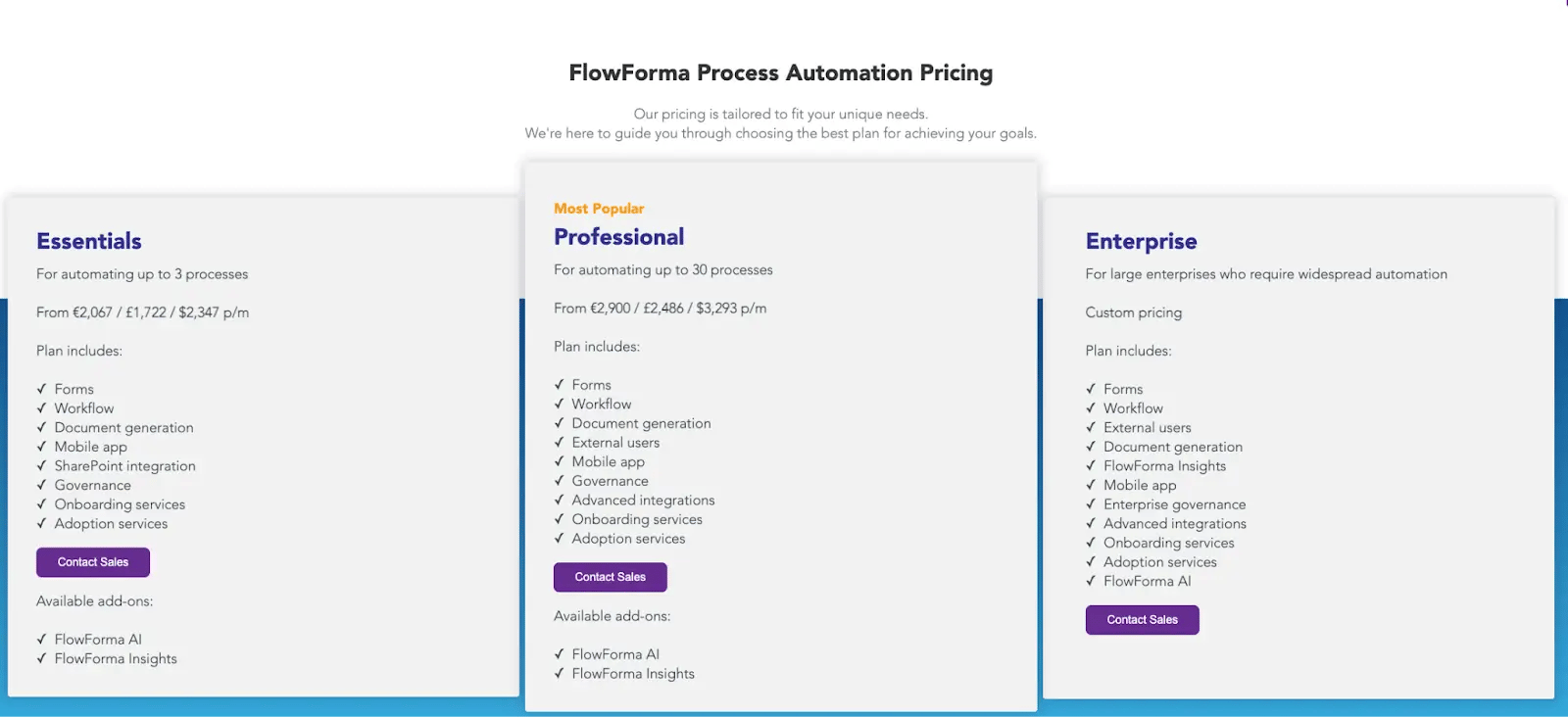
FlowForma’s per-process-based pricing plans
3. Microsoft Forms
.webp?width=1600&height=551&name=undefined-Feb-26-2026-04-13-49-3577-PM%20(1).webp) Microsoft Forms homepage
Microsoft Forms homepage
Best For: Simple data collection with no approval workflows and minimal setup.
Advice for IT leaders: Microsoft Forms handles basic data collection well and is already included in most Microsoft 365 licences. If you only have a few InfoPath forms and they handle simple data, this is a very good, low cost option.
For teams that mainly used InfoPath for straightforward data capture, Microsoft Forms can cover the basics without a steep learning curve. You don’t need technical skills, and sharing forms internally or externally is easy.
But, if your organization handles complex InfoPath forms (any form that currently involves multi-stage approvals, conditional routing, compliance audit trails, or document generation) then Microsoft Forms would not work for you.
InfoPath vs Microsoft Forms at a glance
|
Area
|
InfoPath
|
Microsoft Forms
|
|
Primary focus
|
Structured forms within SharePoint
|
Simple surveys and data collection
|
|
Workflow automation
|
Limited, often external
|
No native workflow engine
|
|
Conditional logic
|
Advanced for its time
|
Basic branching only
|
|
Document generation
|
Manual or external tools
|
Not supported natively
|
|
Complexity support
|
Moderate form complexity
|
Best for basic forms
|
|
Ideal use case
|
Structured internal forms
|
Quick surveys, feedback, and lightweight requests
|
Side-by-side overview of Microsoft Forms and InfoPath
Key Features of Microsoft Forms That Matter While Replacing InfoPath
1. Drag-and-drop form builder
You can create forms quickly using prebuilt question types such as text fields, choice options, ratings, and file uploads. If your old InfoPath forms were basic and informational, this gives you a fast way to recreate them.
2. Automatic response collection in Excel
Form responses are automatically stored and can be exported to Excel for analysis. That makes it easy to review submissions without having to build custom reports.
3. Basic branching logic
You can add basic branching rules so questions appear based on previous answers. While not as advanced as full workflow logic, this helps personalize the form experience.
4. Seamless Microsoft 365 sharing
Because it’s part of Microsoft 365, you can easily share forms across Teams, SharePoint, or via email. Access control is managed within your existing tenant.
Microsoft Forms Pros and Cons
Pros:
- Very easy to set up and use, even for non-technical users.
- Fast form and survey creation with a clean, intuitive interface.
- Native integration with Microsoft 365 for quick data collection and analysis.
- Ideal for simple feedback, polls, and internal data capture.
Cons:
- Limited customization for branding, layout, and advanced design.
- Lacks advanced form logic for complex or multi-step workflows.
- Restrictive sharing and collaboration controls for larger use cases.
4. Nintex
 Nintex homepage
Best For: Teams with document-heavy workflows and eSignatures, particularly in HR, legal, and procurement environments.
Advice for IT leaders: Nintex is a good choice for document heavy workflows in industries where compliance is a key focus. It is particularly strong in environments where structured document routing and formal approval chains are part of daily operations.
One consideration to think about is that Nintex-on premise products have reached end-of-life and organizations running both InfoPath and Nintex-on premise might find it more efficient to consolidate onto a single Microsoft 365-native platform rather than migrating to another platform that faces a similar transition in the near future.
InfoPath vs Nintex at a glance
|
Area
|
InfoPath
|
Nintex
|
|
Primary focus
|
Form creation and data capture
|
Workflow automation with document and signature management
|
|
Document handling
|
Manual generation and routing
|
Automated generation and structured routing
|
|
eSignatures
|
Typically external tools
|
Built-in eSignature support
|
|
Workflow depth
|
Limited without add-ons
|
Designed for multi-step, compliance-driven workflows
|
|
Legacy integration
|
Minimal automation
|
RPA support for older systems
|
|
Governance visibility
|
Basic tracking
|
Stronger audit and document tracking controls
|
Side-by-side overview of Nintex and InfoPath
Key Features of Nintex That Matter While Replacing InfoPath
1. Advanced form builder with conditional logic
You can design forms that adjust based on user input, using conditional logic and field dependencies. That helps you replace static InfoPath forms with more guided and accurate submissions.
2. Document generation from workflow data
Contracts, letters, and reports can be automatically generated using the data captured during the workflow. You no longer need to copy and paste form data into templates after submission.
3. Built-in eSignatures and document routing
Nintex includes native eSignature functionality and automated routing. You can send documents for approval and signature directly within the process, keeping tracking and accountability in one place.
4. Process discovery and RPA for legacy tasks
Process discovery tools help you understand how work flows today, while RPA can automate repetitive actions in older systems. If your InfoPath setup relied on manual steps in legacy tools, this can help you modernize those gaps.
Pros and Cons of Nintex
Pros:
- Intuitive no-code interface for fast workflow and form creation.
- Strong automation with good cross-system integration support.
- Adapts well to both simple and complex processes.
- Quick setup without heavy technical expertise required.
Cons:
- Pricing becomes expensive as workflows, environments, and users scale.
- Requires governance and technical oversight for complex process implementations.
- Advanced customization often needs developer involvement beyond business users.
5. Crow Canyon Systems
.webp?width=1600&height=585&name=undefined-Feb-27-2026-09-08-49-6316-AM%20(1).webp) Crow Canyon’s Nitro Studio page
Crow Canyon’s Nitro Studio page
Best For: Organizations committed to SharePoint that want no-code forms and workflow automation without moving data outside that ecosystem.
Advice For IT Leaders: Crow Canyon's NITRO Studio is a SharePoint-native platform that handles forms and basic workflow automation. It is a good option if you are looking for simple process automation within the MS ecosystem.
But, it has limited AI functionality and is designed more for simple workflow automation. If you are looking for a platform to handle more complex workflows and a more advanced AI product roadmap, Crow Canyon won't be for you.
Crow Canyon vs InfoPath at a glance
|
Area
|
InfoPath
|
Crow Canyon Systems (NITRO Studio)
|
|
Primary focus
|
Static SharePoint form creation
|
Full SharePoint forms + workflow automation
|
|
Form flexibility
|
Limited conditional logic
|
Advanced dynamic forms with controls
|
|
Workflow automation
|
External or manual processes
|
Integrated rule-based workflows
|
|
User interface
|
Classic form pages
|
Modern portals, dashboards, and web parts
|
|
Reporting & metrics
|
Not built-in
|
Built-in dashboards + analytics
|
|
SharePoint integration
|
Native form hosting
|
Deep build on SharePoint/Teams platforms
|
|
Extensibility
|
Basic
|
APIs, connectors, Power Automate support
|
Side-by-side overview of Crow Canyon and InfoPath
Key Features of Crow Canyon
1. Flexible no-code forms built for SharePoint
Crow Canyon’s NITRO Forms give you a visual, drag-and-drop builder that works inside SharePoint lists and libraries without custom code.
Unlike static InfoPath forms, you can configure conditional fields, repeating sections (e.g., line items or sub-rows), responsive layouts, and permission-aware behavior so form fields show or hide based on user roles or inputs.
2. Workflow automation integrated with SharePoint
Instead of exporting InfoPath data to external tools or emails, workflows become part of the SharePoint process.
NITRO Studio lets you design workflow logic that routes submissions to the right approvers, triggers notifications, and updates list items based on outcomes. You can support multi-stage approvals, conditional routing, and exception handling without third-party workflow engines.
3. Modern SharePoint portals for users
Rather than asking users to navigate to different lists or disparate tools, you can build a unified self-service interface inside SharePoint (classic or modern UI). It is, thus, easier for users to submit new requests, check status, view history, and access knowledge base articles.
4. Enhanced list views and search
Crow Canyon adds powerful list views and search tools that make SharePoint lists far more usable.
You can configure multiple custom views, previews, filters, export options, and even advanced list search web parts so users can quickly find what they need without building complex SharePoint queries manually.
Crow Canyon Pros and Cons
Pros:
- Pre-made templates simplify the creation process.
- Extends SharePoint with low-code capabilities.
- Simple knowledge-base and document management experience.
Cons:
- Noticeable delays when opening forms, which can impact time-sensitive business processes.
- Limited depth for complex customer service workflows.
- The lack of a dedicated mobile app reduces flexibility for on-the-go agents.
6 Important Features to Look for in an InfoPath Alternative
As you evaluate better InfoPath alternatives, it is important to focus on certain key features of the alternative platform to understand how it will make an operational difference for your team.
The six features listed below are the ones you need to look for:
1. No-code design that your business teams can actually use
One of the biggest lessons from InfoPath is that forms often become IT-dependent over time. A strong alternative should give you a drag-and-drop form builder and a visual workflow designer so your business users can build and adjust processes themselves.
For example, your HR team should be able to update an onboarding form, add a new approval step, or adjust a validation rule without raising a development ticket.
2. Mobile support for a modern, distributed workforce
Look for responsive design, native mobile apps, and offline capabilities. For instance, a facilities manager should be able to submit an incident report from a phone, even in a low-connectivity environment, and sync it later. If your replacement only works well on a desktop, you’re limiting adoption from day one.
3. Workflow automation that goes beyond form submission
You’ll want multi-step approvals, conditional routing, escalations, and automated notifications. Without built-in workflow automation, you’re simply recreating static forms instead of improving the process.
4. Integration that connects your existing systems
A strong alternative should offer API connectivity, prebuilt connectors, and reliable data synchronization.
Imagine submitting a new vendor request form that automatically creates a record in your ERP system and stores supporting documents in SharePoint. Such a level of integration eliminates double entry and reduces errors. Without it, data silos will continue to slow you down.
5. Security and compliance controls you can trust
When replacing InfoPath, governance should not become an afterthought. Role-based access, detailed audit trails, and data encryption are essential. If you operate in a regulated industry, a searchable audit history can make compliance reviews significantly easier. Security should be built in, not bolted on.
6. Analytics and reporting that help you improve over time
Finally, don’t settle for a system that simply runs your processes. Choose one that helps you improve them. For example, you might discover that procurement approvals consistently exceed SLA targets, prompting you to adjust routing rules or staffing.
Your InfoPath Migration Checklist: What IT Leaders Need to Complete Before July 2026
Migrating to InfoPath can be a messy affair. Here's a step-by-step guide for a full-fledged migration to an InfoPath alternative, using FlowForma as a working example throughout.
Step 0: Audit your InfoPath forms environment
Start by listing every InfoPath form in use in SharePoint Online. Then prioritize which forms are mosy critical to your business.
Step 1: Pick a pilot to migrate
Next, pick one to migrate first. Choose something that runs frequently, involves multiple people, and has clear business value. Let’s assume it is a Supplier onboarding form that has multiple approvers, regular follow-ups, and a tendency to produce incomplete data.
Step 2: Map what actually happens around the form.
Before rebuilding anything, write down what happens after the form is submitted. Capture who reviews it, who approves it, where exceptions come up, and where things tend to stall.
In the case of a Supplier Onboarding form, the flow typically looks like this—procurement checks the details, finance approves the budget, legal reviews the documents, and then someone manually emails the supplier to chase missing information.
Step 3: Rebuild the form properly
Move the InfoPath fields into your new platform, but take the opportunity to improve the form while you're at it. Add required fields, conditional logic, and validation rules that catch bad data before it causes delays downstream.
Let’s assume that your preferred InfoPath alternative is FlowForma. You can show tax fields only when "International Supplier" is selected, or block submission if a VAT number is in the wrong format. These are small changes that cut out most of the back-and-forth.
Step 4: Build the workflow.
Once the form is in place, define what happens after it's submitted. Map out the full sequence of steps and assign an owner and a due date to each.
In FlowForma, for example, that sequence for Supplier Onboarding will look like this: Request Submitted → Procurement Review → Finance Approval → Legal Review → Supplier Confirmation → Completion.
Nothing moves forward until the right person has acted.
Step 5: Add routing rules, escalations, and SLAs
With the workflow defined, the next step is to account for variations. Most processes have exceptions, and those exceptions should be handled by rules rather than left to whoever happens to be managing the inbox that day.
For instance, with FlowForma, you can set it so that any request above £10,000 automatically routes to a senior approver, or that a "contract required" flag from legal triggers a separate contract review stage.
You can also configure it so that if a step sits idle for 48 hours, a reminder is sent and the request is escalated to the relevant manager. The process then runs the same way every time, regardless of who's involved.
Step 6: Set permissions and governance
After configuring the workflow and routing rules, define clear permissions for building, publishing, and accessing data. Governance is essential when multiple teams share the platform to protect data and maintain accountability.
Step 7: Automate your document generation if you're still copying data into templates
After configuring the workflow and routing rules, define clear permissions for building, publishing, and accessing data.
If your process still involves manually copying form data into Word or PDF templates, migration is the ideal time to address it, as FlowForma allows you to automate document generation instantly and at scale.
Step 8: Set up reporting and audit trails
With the process running, build in visibility so you can see how it's actually performing.
Using FlowForma's dashboards, you can track average approval time per stage, identify where requests consistently stall, see what gets rejected and why, and pull a full audit trail showing exactly who approved what and when.
.webp?width=1600&height=885&name=undefined-Feb-27-2026-09-16-44-8175-AM%20(1).webp)
Gain real-time visibility with FlowForma dashboards
A full audit trail also captures who approved what and when—particularly useful for regulated industries.
Step 9: Pilot with a small group before a full-fledged launch
Before rolling out to the whole organization, run the new process with a small group first and fix any gaps that come up. Once adoption is stable, retire the InfoPath form.
You can start with a three-week rollout, which can look something like this: Procurement uses the new FlowForma process in week one, finance and legal join in week two, and by week three, the InfoPath form is retired, and users are directed to the new process link in SharePoint or Teams.
Test, iterate, deploy, and launch. Or, skip all these steps and simply use FlowForma AI Copilot to create a seamless InfoPath migration. Here is a demo explaining how to do it in just a few steps:
Replace an InfoPath form in seconds
Rapidly Migrate From InfoPath To FlowForma
Migrating from InfoPath doesn’t have to mean rebuilding everything from scratch or adding complexity. FlowForma gives you a structured, no-code way to move your existing InfoPath forms into fully automated workflows inside Microsoft 365.
Instead of maintaining static forms and chasing approvals through email, you can recreate your forms in FlowForma and layer in routing, validation, SLAs, document generation, and full audit trails. What used to live partly in InfoPath and partly in inboxes becomes one governed, visible process.
Our team will also migrate all of your InfoPath forms for you, meaning you can migrate at short notice. With the July deadline, I hope this is good new for you!
If you are planning your InfoPath migration, connect with our InfoPath Migration specialists to explore how FlowForma can support your transition and help you build a more reliable, scalable process foundation.