Nintex has been a familiar name in workflow automation for years, with organizations adopting it to move away from manual approvals and email-driven processes. Over time, though, some teams find that what worked at the start becomes harder to manage at scale.
Why Teams Look for Nintex Alternatives
Nintex is one of the leading software vendors in the workflow automation space with a strong product track record, brand reputation and growing global customer base.
But, like all software platforms (including ours!) customers move away for a variety of reasons and in this this article I’ll discuss why some organizations are looking for Nintex alternatives.
Over the past few months, I’ve joined a lot of customer calls where the IT team has migrated away from Nintex. From speaking with these teams, three core reasons are highlighted, which include technical dependency and migrations, implementation timelines and unpredictable pricing.
- Organizations that have automated workflows with older SharePoint on-premise and K2 builds have highly customized logic. The workflows are solid and work well for the business but there’s a catch. If the process owner leaves the business the knowledge leaves with them, leaving organizations to struggle with maintaining the flow
- Tied into the legacy platform point, how migrations are handled from end-of-life platforms was another issue. On April 2, 2026, Microsoft retired the SharePoint 2013 workflow engine in Microsoft 365. Nintex Workflow for Office 365 lost support on December 31, 2025, and stopped functioning when the engine was switched off. The feedback from those that I spoke to, was that there was little support provided in migrating to a new platform
- For organizations looking to move fast with an automation project, the feedback that that custom configuration and integrations can slow the process down
- While the partner model for support presents challenges as it makes budgeting difficult when issues occur that require complex support packages
None of this feedback means that Nintex is a poor platform, it just means that the teams wanted to go down a different platform route to achieve their process automation goals.
In the next section I’ll discuss ten options worth considering if your team is looking for a Nintex alternative
How We Evaluated These Nintex Competitors
| Criteria |
What We Looked For |
Why It Matters |
| Ease of use |
Whether business users, not just IT teams, can build and edit workflows and forms |
Reduces reliance on IT and speeds up every future change |
| Speed of implementation |
Time from sign-off to a live, working process |
Faster time-to-value; fewer stalled projects |
| Pricing transparency |
Clear, predictable pricing that scales without surprises |
Protects your budget as usage grows |
| Governance & audit readiness |
Version control, audit trails, permissions, and compliance support |
Essential for regulated industries and internal accountability |
| Integration & ecosystem fit |
How well the tool fits your existing stack, especially Microsoft 365 / SharePoint |
Cleaner data flow, less custom middleware, lower maintenance |
| Scalability |
Performance and cost behaviour as processes and volumes grow |
Avoids re-platforming later |
10 Best Nintex Alternatives in 2026
| Platform |
Best For |
Deployment Model |
Key Strength |
| Kissflow |
IT + business collaboration |
Cloud |
Low-code app + workflow combo |
| FlowForma |
Business users with IT governance |
Cloud (Microsoft 365-based) |
100% no-code, AI, forms, workflow, doc generation |
| ProcessMaker |
Technical teams |
Cloud / On-prem |
Advanced scripting + IDP |
| Cflow |
SMB teams |
Cloud |
Template-driven affordability |
| Bizagi |
Process modeling-focused teams |
Cloud / On-prem |
Strong BPMN modeling + governance |
| Appian |
Large enterprise wide automation |
Cloud / On-prem |
Enterprise orchestration + RPA |
| Decisions |
Rule-heavy enterprises |
Cloud / On-prem |
Business rules engine depth |
| Microsoft Power Apps |
Developer heavy teams |
Cloud |
Deep Microsoft integration |
| Boomi |
Integration-heavy environments |
Cloud / Hybrid |
Integration + multicloud deployment |
| Process Street |
SOP-driven teams |
Cloud |
Checklist-style workflow simplicity |
Now, let us analyze each tool in detail:
1. Kissflow
Best for: Organizations that want low-code flexibility while allowing business teams to build workflows.
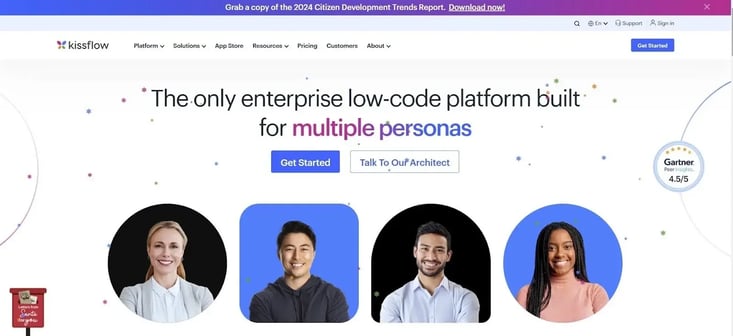
Kissflow's homepage
Some teams aren’t looking for ultra-simple no-code tools. They want structured app-building layered over workflow automation. Kissflow sits in that middle ground, allowing IT and business teams to collaborate while maintaining flexibility.
Its visual builder and integration support make it a practical option for HR, finance, and procurement processes. The focus is on improving day-to-day coordination and giving teams clearer visibility into how work moves.
Kissflow Key Features
1. Low-code application builder
You can build custom internal applications on top of workflow logic, which becomes useful when workflows require more structured data models or app-like interfaces.
2. Process automation engine
Kissflow supports common internal business processes by creating approval chains, task routing, and notifications using a visual interface.
3. Work queues and case boards
Users can manage incoming work items through boards and status views, which is useful for ticketing and repeatable task management.
4. Integration capabilities
Connect workflows to CRM, HR, and other SaaS tools and reduce manual system updates across departments.
Kissflow’s Pros
- Low-code tool which is flexible for both IT and business users
- Clean interface for process building
- Good workflow visibility and cross-departmental collaboration
- Good form-building capabilities
Kissflow’s Cons
- Performance concerns increase with larger data sets
- Deployment may take longer in complex environments
2. FlowForma
Best for: Mid-sized and enterprise organizations seeking no-code workflow automation for business users with governance IT and alignment with Microsoft 365.
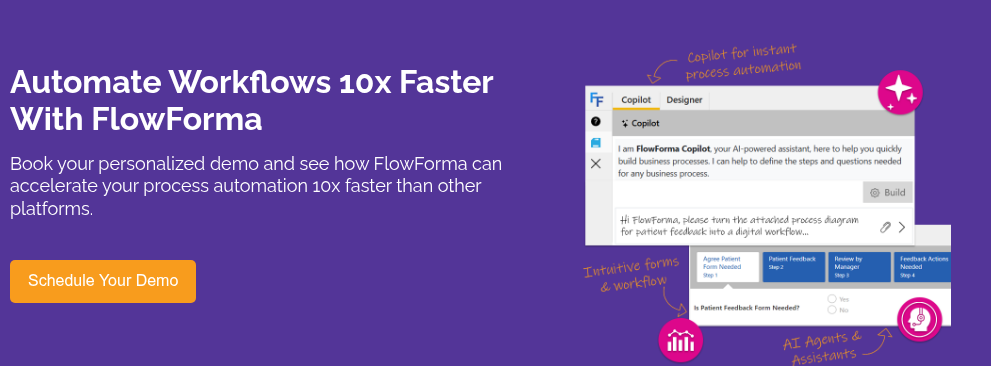
FlowForma’s Product Demo
If you want workflows to live fast without handing every change request to developers, our platform is built for that.
FlowForma combines forms, routing, analytics, document generation, and AI support in a single environment. Your teams can build and run processes day to day, while IT stays involved through governance, security controls, and oversight.
With an in-built compliance model, it is a strong fit for regulated environments where audit trails, compliance, and approvals are non-negotiable. It's native to MS 365, so suited for organizations looking to keep data secure within their own tenency.
FlowForma’s Key Features
1. No-code workflow builder
You can build multi-step workflows using a visual drag-and-drop interface. Business users can configure routing, escalations, and role-based approvals without scripting or custom development.
2. AI Suite
FlowForma’s AI Suite supports the full workflow lifecycle, from build to optimization.Copilot accelerates process creation from natural language prompts, while AI Agent Rule enhances live decision-making within workflows. Summarization and Discovery Agent help reviewers absorb information quickly and identify process bottlenecks using real workflow data.
3. Integrated forms and validation
Our forms automation module support real-time data collection within workflows. Conditional logic and validation rules help prevent incomplete or incorrect submissions before they move forward. Role-based visibility ensures users only see what’s relevant to them.
4. Built-in analytics and reporting
FlowForma provides built-in dashboards that let you monitor process performance without exporting to separate BI tools. Process owners can track turnaround times, bottlenecks, approval delays, and workload distribution in real time.
FlowForma’s Pros
- Easy, no-code interface for business users to work with
- Native M35 integration and easily integrates with 1000+ other apps, including existing business systems and ERP, CRM, and HR platforms
- Allows seamless workflow creation and collaboration across teams with complete audit trails for transparency
FlowForma’s Cons
- Advanced configurations may require initial learning time
- It's not suited for organizations outside of the MS 365 ecosystem
3. ProcessMaker
Best for: IT-led organizations needing scripting flexibility and document automation.
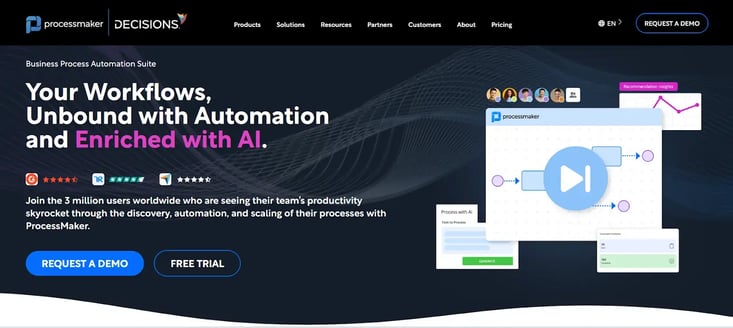
ProcessMaker’s Homepage
Technical teams moving away from Nintex often prioritise flexibility in logic and scripting. ProcessMaker offers a BPM-style environment with advanced customisation options. It combines structured workflows with document intelligence features, making it attractive in data-heavy environments.
ProcessMaker’s Key Features
1. Advanced workflow designer
Build workflows with conditional logic, routing rules, and custom triggers. Suitable for more complex operational scenarios.
2. Scripting and custom logic
Developers can extend workflows using custom scripts, allowing for deeper process control where needed.
3. Intelligent document processing (IDP)
You can extract structured data from uploaded documents using OCR and AI-based classification.
4. Process modeling
ProcessMaker provides a visual BPM diagram builder to map workflows before automation, which is helpful for teams that require documented processes for consistency, internal reviews, or compliance.
ProcessMaker’s Pros
- Strong customer support
- Supports custom integrations with various applications
- Flexible workflow configuration with a simple interface for ease of use
ProcessMaker’s Cons
- Upgrade-related bugs reported
4. Cflow
Best for: Small to mid-sized businesses seeking template-driven workflow automation.
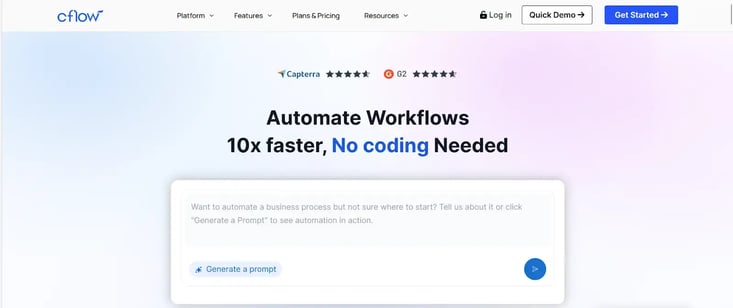 Cflow homepage
For smaller organizations that prioritize cost predictability and ease of setup, Cflow is a good option.
It positions itself as a template-driven alternative designed for faster onboarding. Besides, pricing transparency is often part of the tool’s appeal.
Cflow’s Key Features
1. Drag-and-drop form builder
Build request and approval forms visually, with the right fields and basic validation. For users looking to standardize HR, finance, or internal service intake, Cflow is a practical tool to get up and running quickly.
2. Routing and notifications engine
You can configure approval paths by role, team, or condition, with automatic alerts, reminders, and escalations.
3. Templates library
Cflow has a template library that lets you start from pre-built workflows and adjust steps, fields, and approvers to match internal policies, making it easier to launch common processes fast.
4. Rules engine
You can add conditional logic like “IF spend is over X, route to Finance” to reduce manual sorting and avoid stalled requests. Helpful when teams need predictable routing without heavy setup.
Cflow’s Pros
- Quick to roll out, with an interface that’s easy for most teams to pick up without much training
- Handles routine workflow automation well
- Keeps requests, approvals, and status tracking in one place for better day-to-day visibility
Cflow’s Cons
- Can slow down when workflows get more complex or when handling larger volumes of data
- Advanced configuration takes some guidance, especially for teams new to workflow design
5. Bizagi
Best for: Organizations prioritizing process modeling and governance.
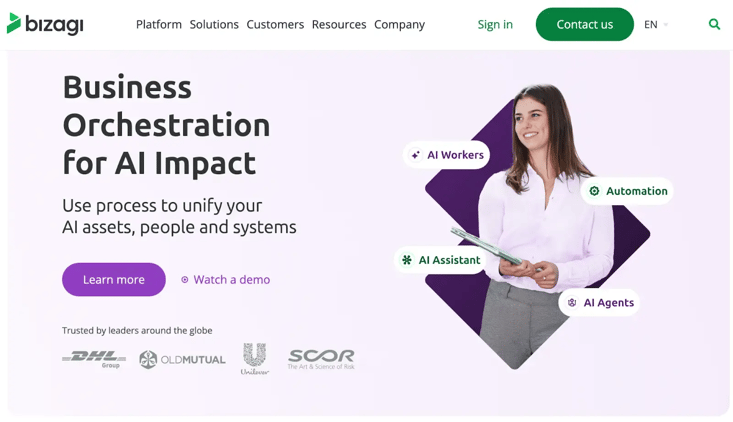
Bizagi’s homepage
Combining structured BPMN process modeling with workflow automation, Bizagi lets teams map processes clearly before putting them into execution. It’s often selected by organizations seeking deeper modeling as part of governance and process-improvement work.
The platform supports structured workflows and low-code applications across industries, including banking and manufacturing, which is why many buyers consider it for more enterprise-style process design.
Bizagi’s Key Features
1. BPMN process modeling and documentation
Bizagi lets you map processes using BPMN-style visual diagrams before you automate anything. Teams use these models to align on how work should flow, document standard steps, and reduce ambiguity during implementation.
2. Low-code app layer for workflow execution
User-facing apps can sit on top of workflows, giving teams forms, task views, and guided screens to complete work. This supports operational execution without requiring fully custom development for every process.
3. Governance and access controls
Role-based permissions control who can build, edit, view, or approve each step. Governance standards help keep process design consistent across teams, which matters in regulated or audit-heavy workflows.
4. Integration and orchestration across systems
Workflows can connect to ERP, CRM, HR, and third-party tools to move data automatically between systems. Orchestration reduces manual re-entry and keeps handoffs between people and platforms coordinated.
Bizagi’s Pros
- Intuitive, visual process and workflow design that is accessible to both analysts and technical teams.
- Supports complex, multi-step workflows with branching logic and multiple decision points.
- Suitable for cross-department processes that require shared visibility, coordination, and control
Bizagi’s Cons
- Limited customization for advanced processes
6. Appian
Best for: Large enterprises needing enterprise-wide orchestration.
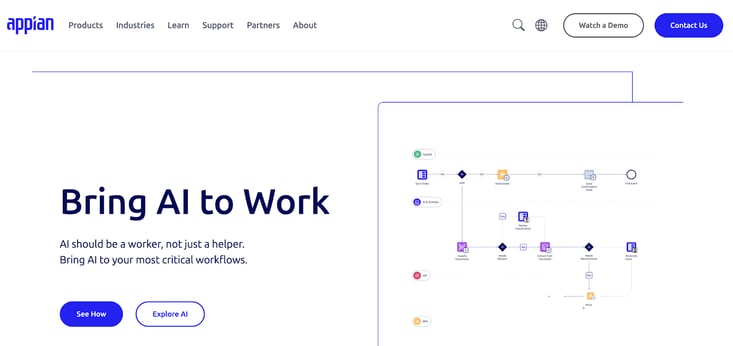
Appian’s low-code development platform
Appian is an enterprise low-code platform focused on process orchestration across systems. It combines workflow automation, RPA, and AI-driven tools. It is typically adopted in large organizations with formal IT governance structures and is compared to Nintex for scale and integration depth.
Appian’s Key Features
1. Enterprise process orchestration
Appian enables organizations to design and manage workflows that span multiple departments, business units, and systems. Complex approvals, exception handling, and SLA tracking can be coordinated in one environment, even when processes cross functional boundaries.
2. Unified data fabric
A unified data layer connects information from different systems without requiring full data replication. Applications and workflows can access structured data in real time, which reduces reliance on manual exports and fragmented reporting.
3. RPA and automation tools
Robotic process automation handles repetitive, rules-based tasks in legacy or non-integrated systems. It allows teams to automate interactions where APIs may not exist, reducing manual effort in high-volume environments.
4. Process intelligence
Built-in monitoring tools provide visibility into workflow performance, cycle times, and delays. You can analyze where work slows down and identify opportunities for improvement based on execution data.
Appian’s Pros
- Strong enterprise integrations
- Intuitive interface and good process automation capabilities
- Mature RPA capabilities and strong governance
Appian’s Cons
- High cost and licensing complexity
- Limitations around handling customized use cases
7. Decisions
Best for: Enterprises requiring strong rules-based workflow automation.
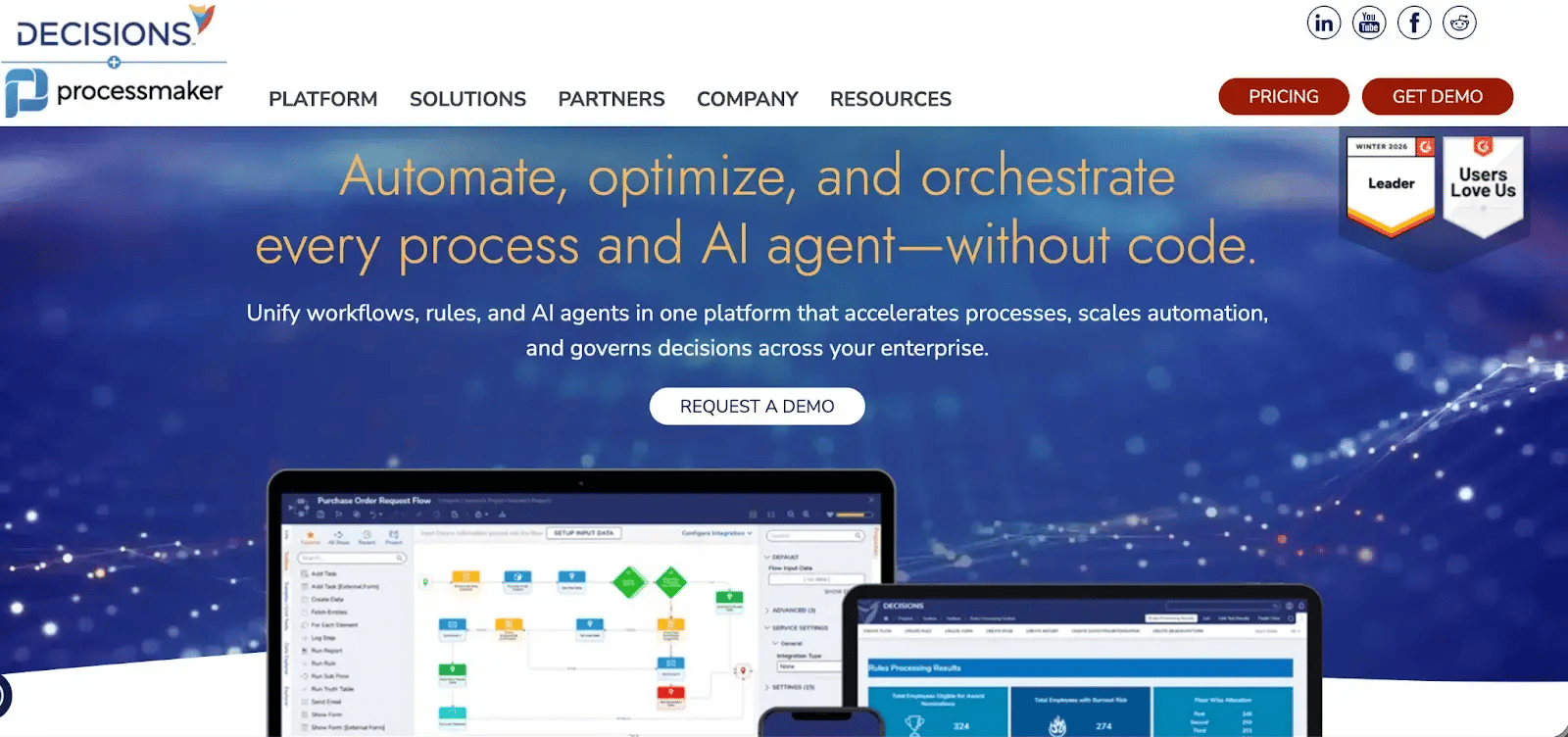
Decisions homepage
Decisions focuses on rule-driven process automation, making it popular in regulated industries. It supports structured decision logic alongside workflow orchestration and is often evaluated by technically mature teams that need strong control over business rules.
Decisions’ Key Features
1. Rules engine
You can define complex business logic using visual rule designers instead of hardcoding decisions into scripts. Thresholds, scoring models, eligibility checks, and exception handling can be automated directly inside workflows, which is particularly useful in regulated environments where decision consistency matters.
2. Workflow manager
Teams can manage multi-stage workflows that coordinate both users and systems. Approvals, escalations, parallel steps, and conditional routing can all be configured to reflect real operational processes.
3. Integration options
With Decisions, you can connect workflows to third-party systems for real-time data exchange. APIs and prebuilt connectors allow processes to pull in data, trigger external actions, and update systems automatically, reducing manual re-entry.
4. Dashboard builder
You can create operational dashboards that display workflow metrics such as turnaround time, workload distribution, and SLA compliance. These dashboards help managers monitor execution and intervene when processes slow down.
Decisions’ Pros
- Easy to use across experience levels, including non-technical teams
- Strong no-code configuration for building tailored apps and workflows
- Customer support is often praised as responsive and well-informed
Decisions’ Cons
- Navigation can feel clunky when trying to find specific settings or features quickly
- Pricing may be a stretch for individuals or very small teams
8. Microsoft Power Apps
Best for: Organizations already invested in Microsoft 365 ecosystems seeking native integration. Power Apps works best when your organization already runs on Microsoft. App-first workflows are the core idea here, often paired with Power Automate for routing and approvals. Teams adopt it for internal tools, request apps, and simple workflow-based experiences. Licensing and advanced build complexity are common considerations.
.webp?width=1600&height=573&name=Image%20of%20Power%20Apps%20home%20page%20(1).webp)
Power Apps home page
Microsoft Power Apps’ Key Features
1. Canvas and model-driven apps
Build custom apps through a visual designer, either with flexible drag-and-drop screens (canvas apps) or structured, data-first layouts (model-driven apps). It gives teams options depending on whether they need quick interfaces or more standardized, enterprise-style apps.
2. Extensive connector ecosystem
You can access a large library of connectors for Microsoft products and third-party services. Connectors make it easier to pull data in, push updates out, and avoid manual copy-paste work across systems.
3. Power Automate integration
Power Automate can help you add workflow logic to handle routing, approvals, notifications, and background actions. Many Power Apps deployments rely on this pairing to deliver full process automation rather than standalone apps.
4. Power BI integration
You can embed Power BI reports and dashboards directly inside applications. Users can view performance metrics and process data in the same place where they submit requests or complete tasks.
5. Template-based starters
Use prebuilt app templates to speed up initial setup and prototyping. Templates provide a starting point, then teams typically customize screens, data sources, and logic to match real operational needs.
Microsoft Power Apps’ Pros
- Supports rapid custom app development, especially for internal tools and quick prototypes
- Integrates closely with Microsoft 365 and the wider Power Platform
- Connects to many external data sources through built-in connectors
Microsoft Power Apps’ Cons
- Advanced logic and data modeling can take time to learn, particularly as apps grow in complexity
- Performance can dip with large datasets or more complex app designs
9. Boomi
Best for: Integration-heavy environments requiring multicloud flexibility.
Boomi Homepage
Teams often evaluate Boomi when integration is the real challenge. It supports orchestration across systems, APIs, and data sources, including hybrid deployments.
Teams with complex environments often see Boomi as a platform play rather than a simple workflow tool, and its pricing and onboarding depth tend to reflect that.
Boomi’s Key Features
1. Visual flow builder
You can design integration and workflow logic using a drag-and-drop canvas instead of writing extensive code. Flows can include data transformations, decision points, and system triggers, making it easier to orchestrate processes across platforms.
2. Prebuilt connectors
Teams can leverage a wide library of connectors to link ERP, CRM, HR, and other systems. These connectors reduce the need for custom API development and speed up system-to-system automation.
3. Multicloud deployment
Deploy applications and integration flows across public cloud, private cloud, or on-premise environments. The flexibility supports organizations with hybrid infrastructure or strict data residency requirements.
4. API-first architecture
You can expose and consume APIs to extend workflows beyond the core platform. Developers can build custom services or integrate additional applications without redesigning existing flows.
5. Runtime monitoring and observability
Teams can track flow performance, error rates, and execution status in real time. Monitoring tools help teams troubleshoot issues quickly and maintain reliability at scale.
Boomi’s Pros
- Real-time monitoring dashboards for process visibility
- Extensive library of connectors for seamless integrations across multiple systems
- Cloud-based system which is quick and easy to set-up with good customer support
Boomi’s Cons
- Pricing scales as automation efforts grow
10. Process Street
Best for: Teams needing checklist-driven SOP automation.
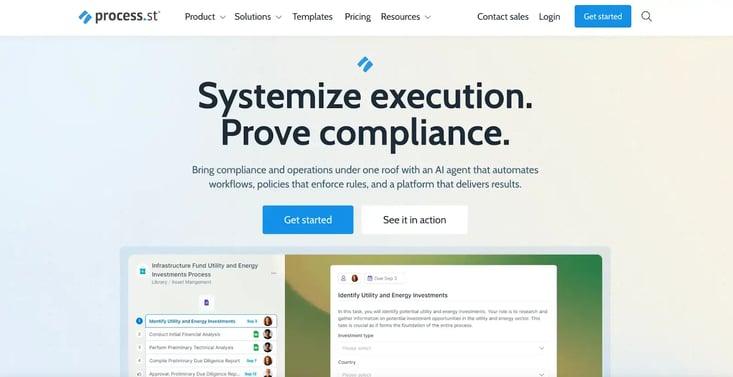
Process Street Homepage
A light BPM platform, Process Street is built for repeatable tasks, SOP execution, and operational consistency. Teams use it for onboarding, audits, and recurring internal processes.
However, if your workflows need complex orchestration or deep governance, it may feel limited.
Process Street’s Key Features
1. Checklist-based workflow runs
Turn SOPs into repeatable workflows that teams can run every time the process occurs. Each run follows a defined sequence of tasks, which helps standardize execution across people, shifts, and locations.
2. Form fields within tasks
Capture structured data such as dates, approvals, evidence links, or operational details directly within each checklist step.
3. Task assignments and approvals
You can assign ownership at the task level and route approvals to the right reviewers. Status tracking helps managers see what’s moving, what’s blocked, and who needs to act next.
4. Integrations with SaaS tools
You can connect Process Street to tools like Slack, Gmail, or CRMs to trigger actions automatically. Integrations help reduce manual follow-ups and keep workflow updates in sync across systems.
Process Street’s Pros
- Builds flexible, audit-ready workflows with roles, conditional logic, and approvals
- Offers fast setup and helpful customer support, which suits small teams
Process Street’s Cons
- Advanced features can be harder for new users to pick up
- Requires some initial learning time before teams use the platform confidently
How to Choose the Right Nintex Alternative
If you’re exploring alternatives, chances are something isn’t working as expected. Based on consistent feedback, buyers often cite complexity, technical dependency, and cost predictability as pressure points.
Here’s what you should look at when evaluating Nintex alternatives:
1. No-code interface for business users
Many teams report needing technical skills to configure or maintain advanced workflows. Ask yourself: can business users build and modify processes without waiting in an IT queue? The right alternative should reduce dependency without compromising governance.
2. Speed of implementation
Long rollout timelines are a recurring theme in enterprise automation platforms. Look for tools that enable phased deployment and a fast proof-of-value, rather than months of configuration before anything goes live.
3. Pricing transparency at scale
Licensing models that scale unpredictably can create budgeting friction. Evaluate how pricing changes as usage expands across departments. Transparent models make long-term planning easier.
4. Microsoft 365 compatibility
If you are building your automation strategy around M365, you need to think about the platforms compatibility with Microsoft, SharePoint and Teams. Native Microsoft platforms will provide the fastest deployment, less migration headaches and fit into your tech stack strategy.
5. Governance and audit readiness
If compliance matters, check how the platform handles audit trails, permissions, version control, and change tracking. Governance shouldn’t require custom configuration to function properly.
6. Integration depth and performance
Automation rarely lives in isolation. Make sure the platform connects smoothly to ERP, CRM, HR, and document systems without heavy custom integration work.
Some users note performance concerns as workflows become more complex. Ask how the platform handles higher transaction volumes, parallel processes, and long-running approvals.
Which Nintex Competitor Is Right for You?
| Platform |
Best-Fit Use Case |
| Kissflow |
Citizen developers building no-code apps and workflows in one shared work platform |
| FlowForma |
No-code workflows, forms, and document generation for regulated teams on Microsoft 365 / SharePoint |
| ProcessMaker |
Document-heavy processes needing intelligent document processing and custom scripting |
| Cflow |
Small teams wanting quick, affordable approval workflows from ready-made templates |
| Bizagi |
Mapping and modeling complex, multi-department processes in formal BPMN before automating |
| Appian |
Large-scale, mission-critical enterprise application development with orchestration and RPA |
| Decisions |
Automating rules-heavy decisioning such as eligibility, pricing, or risk scoring |
| Microsoft Power Apps |
Extending existing Power Platform investments with custom low-code apps |
| Boomi |
Connecting and syncing data across many disparate systems (iPaaS) |
| Process Street |
Documenting and running repeatable SOPs and checklists |
Making the Switch from Nintex
Nintex is a good platform that supports workflow automation, document generation, and process orchestration across a range of business environments.
However, some organizations find that as processes scale, configuration and ongoing changes can require deeper technical involvement. Managing components, integrations, and licensing can also add complexity over time.
Our platform, FlowForma, offers a true no-code environment where business users can build and adapt workflows directly, while IT maintains governance and oversight.
Companies across multiple sectors have migrated successfully away from platforms such as Nintex to FlowForma. In this video you'll hear from one of our customers, Morley College London on their Nintex migration experience.
Hear how Morley College London migrated away from Nintex
It brings forms, workflow, reporting, document generation, and AI together in one platform, working natively with Microsoft 365 and SharePoint. For teams looking to simplify process ownership without dealing with price scaling, it offers a balanced alternative to Nintex. Book a demo to see the tool in action.