Businesses today move at a rapid pace, and manual workflows can barely keep up with rising demands. Automation often means wrestling with basic tools like Power Automate and SharePoint Designer for SharePoint users. These SharePoint automation tools bring undeniable productivity gains but are only designed for basic processes.
FlowForma Process Automation delivers a compelling alternative: a no-code automation tool with all the essentials, including a powerful workflow engine, award-winning forms user interface, AI assistance, and a user-friendly Copilot, insights, and much more, streamlining workflows all within your SharePoint and Microsoft 365 environment.
Well-regarded and proven in the market, it’s designed to make SharePoint automation easy for everyone, not just the IT team.
Let’s explore when it’s time to consider a platform like FlowForma Process Automation and how it can optimize and streamline your workflows.
Benefits of Automating, while Maximizing SharePoint
According to the Digital Process Automation Survey by Forrester, around 75% of businesses expect their employees to leverage business process automation. Why? It’s simple, they realize how essential automation is for business efficiency and adaptability.
To understand its role, imagine a bumpy road with rush hour traffic and countless bottlenecks. That’s what manual processes are. Now, compare that to powerful automated workflows, which work like a smooth highway, handling complex tasks and repetitive processes with ease.
You know you need to automate more; no company can keep up with the demand for digitization. You probably already have Microsoft 365 and SharePoint Online, so it makes sense to maximize those investments and layer in a powerful workflow engine like FlowForma Process Automation on top.
FlowForma builds on SharePoint Online, extending Microsoft 365 with a powerful no-code workflow automation tool. This allows organizations to automate complex business processes while continuing to use SharePoint as their secure document and data platform.
Benefits of Automating with FlowForma on SharePoint:
- SharePoint Online is your database: FlowForma is the app that runs on it. FlowForma is built to require SharePoint Online as its foundation, it stores and secures your documents and data exactly as it always has, while FlowForma sits above it as the dedicated application layer for designing, running, and managing business-critical processes.
- Go beyond native limits: SharePoint Online's built-in workflow tools weren't designed for complex approvals, conditional logic, or multi-step processes. FlowForma adds a purpose-built automation engine while SharePoint Online continues doing what it does best: storing and securing content.
- No migration, no disruption: Your documents, permissions, and data stay exactly where they are in SharePoint Online. FlowForma doesn't move or replace anything; it builds the process layer SharePoint Online was missing.
- Build complex workflows without code: Drag-and-drop process design already lets business users create approval chains, escalations, and multi-department handoffs in minutes. FlowForma AI takes this further, turning a plain description of your process into a working workflow draft.
- Let AI handle the heavy lifting of process design: FlowForma AI can suggest form fields, logic branches, and approval steps based on the process being automated, so teams spend less time configuring and more time refining
- Automate the full process, not just the form: Route documents, trigger approvals, assign tasks, and track status end-to-end.
What Makes a Process Automation Tool “SharePoint-Native”?
A native SharePoint process automation tool builds and runs workflows using SharePoint's own document, list, and permissions model, instead of syncing that data into a separate database. It can be installed as an app inside SharePoint, but it stores no data outside it.
Forms and documents never leave SharePoint, so there's no second copy of your business records sitting in another cloud. Permissions are inherited automatically from your existing SharePoint and Active Directory setup, so IT doesn't have to build and maintain a separate access model. And because there's no additional platform running on its own infrastructure, the DLP, retention, and security policies you already have for SharePoint simply carry over, there's no second system to govern.
SharePoint Automation Tools Compared: FlowForma vs SharePoint Designer vs Power Automate vs Nintex
Microsoft has retired the SharePoint Designer workflow platform, so it's no longer an option for new workflow automations. Power Automate is native to Microsoft 365 and a capable general-purpose tool, but it connects to SharePoint via connectors rather than being SharePoint-specific, and at scale it can run into premium-connector licensing costs and added governance complexity.
Nintex is a well-established SharePoint integrated vendor, but it runs as a separate platform layered on top of SharePoint, with its own infrastructure to manage and secure. FlowForma Process Automation is built specifically for SharePoint's own document and data model, with no-code workflow design and built-in AI Copilot support.
|
Criteria
|
FlowForma
|
SharePoint Designer
|
Power Automate
|
Nintex
|
|
Native to SharePoint's data model
|
Yes
|
Yes (retired)
|
Partial (connector-based)
|
Yes
|
|
No-code required
|
Yes
|
Requires workflow logic knowledge
|
Low-code, some flows need expressions
|
Yes
|
|
Inherits SharePoint permissions
|
Yes
|
Yes
|
Partial, via connectors
|
Yes
|
|
AI / Copilot support
|
Built-in FlowForma Copilot
|
None (deprecated)
|
Copilot in Power Automate (add-on)
|
Limited
|
|
Status
|
Actively developed
|
Retired by Microsoft
|
Actively
developed
|
Actively
developed
|
Table showing FlowForma, SharePoint Designer, Power Automate, and Nintex comparisons
Step-by-Step Guide to Automating Processes with FlowForma via SharePoint
FlowForma's automation platform can be integrated directly with SharePoint Online. This means the platform uses its powerful engine for forms and workflows while storing data inside SharePoint. FlowForma simplifies workflow automation with its AI-powered Copilot, making it easy for business users to create and manage processes independently. Here’s how to get started, with FlowForma Copilot supporting you at each step to automate processes:
Step 1: Identify processes that are ideal for automation
Start by following the pain. Look at where your team is losing time, where errors appear, and where you have poor visibility into what's happening; those are the business processes that deliver the biggest wins when automated.
A good process automation candidate usually has one or more of these traits: it's repetitive and manual, it depends on chasing people down for approvals or information, it's prone to data entry errors, or it leaves you unable to see where a request currently stands. FlowForma's Copilot can help here too, suggesting commonly automated workflows based on your industry or on setups similar organizations have already put in place.
Typical examples include:
-
Employee Onboarding: An automated onboarding process ensures consistent communication and timely access to resources
-
Expense Reporting: Automated expense workflows streamline approvals and maintain consistency in data entry
- Contracts Management: Automated contract workflows route documents for review and approval in the right order, keep versions and permissions consistent, and give everyone visibility into where a contract currently sits
- Compliance Checklists: Automated checklists route recurring safety, quality, or regulatory checks to the right people, track completion automatically, and leave a clear audit trail instead of relying on someone chasing sign-off manually
In this interactive demonstration below, you'll see FlowForma Copilot build out an onboarding process.
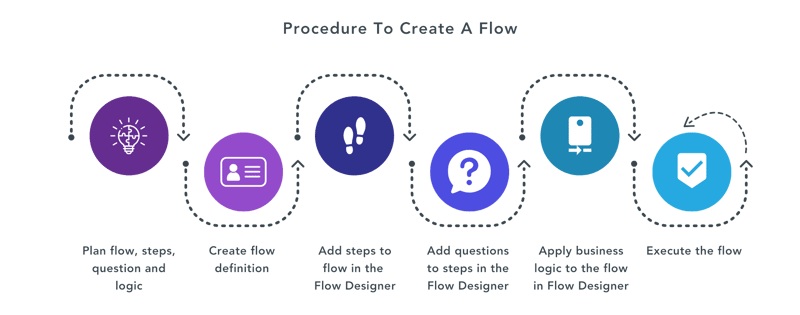
Step 2: Map out the workflow steps
FlowForma’s Copilot makes mapping processes and workflows a breeze. You can prompt FlowForma AI with informative instructions on how to map your process, or you can upload your process documentation and have the AI build your process based on written instructions or visuals. The platform, while mapping your processes in a BPMN model, will also start building out the processes, with steps, forms, and workflow.
Consider the following:
-
Key Actions: Define tasks with Copilot’s help, receiving step-by-step guidance on where approvals, notifications, or conditions might apply
-
Approvals Needed: FlowForma Copilot can recommend common approval pathways based on your input, minimizing the guesswork in setup
-
Conditions and Exceptions: The AI assistant can suggest standard exceptions or alternative paths, such as escalations, which helps streamline complex workflows
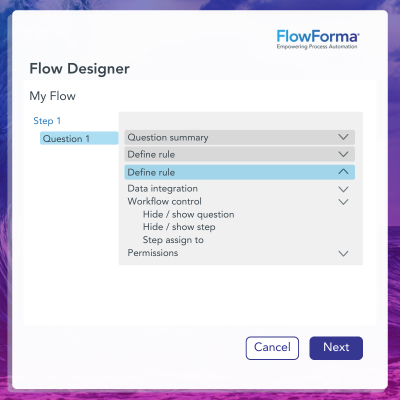
Step 3: Configure the FlowForma workflow in SharePoint
FlowForma’s no-code interface allows you to set up custom workflows, directly in SharePoint. Here’s where Copilot’s AI capabilities truly shine:
-
Drag-and-Drop Configuration: With Copilot’s guidance, users can intuitively arrange tasks, add rules, and set decision points
-
Customized Rules and Conditions: Copilot’s intelligent suggestions help you configure rules, such as auto-approvals based on specific conditions, without writing code
-
Decision Branches: Copilot’s AI assists in setting up conditional decision branches to address scenarios like overdue tasks or escalations automatically
By leveraging AI for setup, FlowForma minimizes the technical knowledge needed, allowing anyone to configure workflows confidently. It's all about empowering the people who know the process best to digitalize it at speed.
Step 4: Set up notifications and approvals
Automated notifications keep custom forms and workflows on track, and FlowForma’s Copilot makes setting up these alerts straightforward:
-
Smart Notification Prompts: Copilot can recommend notification settings based on workflow stage, ensuring timely alerts without overwhelming team members
-
Approval Pathways: Copilot’s AI can suggest typical approval sequences, saving time and ensuring that critical stakeholders are looped in as needed
-
Customized Notification Triggers: With Copilot’s help, customize notifications to alert users of task completions, escalations, or rejections, keeping everyone informed at each stage
Step 5: Test and refine the workflow
Before rolling out a workflow, it’s crucial to conduct a thorough test to catch any potential issues early. FlowForma’s Copilot assists in this process by recommending specific areas to review and drawing on insights from similar workflows.
For instance, Copilot can suggest running a pilot phase with select users, collecting feedback at each stage to identify any bottlenecks or areas needing refinement.
As feedback is gathered, FlowForma Copilot intelligently suggests refinements and optimizations, making it easy to fine-tune the workflow for peak efficiency. This intelligent guidance reduces trial and error and manual effort, ensuring that your workflow is optimized and fully prepared for deployment across the organization.
Step 6: Roll out across the organization
Once the workflow has been tested and optimized, FlowForma’s Copilot makes the rollout process seamless. To facilitate a smooth transition, Copilot offers tips on effectively onboarding users, providing insights to ensure that everyone feels comfortable with the new automated workflow.
Best Practices for SharePoint Workflows Automation
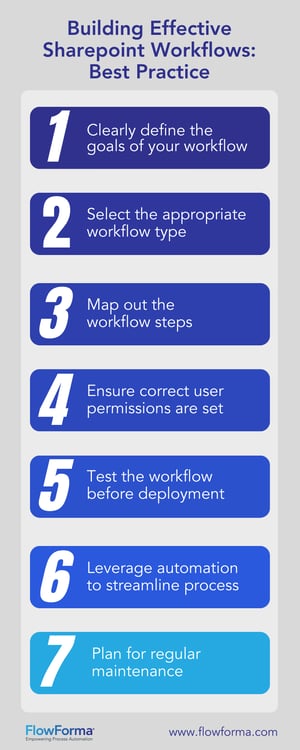 FlowForma makes SharePoint business process automation straightforward, but a few best practices can maximize the impact:
-
Automate High-Impact Workflows First: Focus on workflows that involve multiple tasks or repetitive manual efforts.
-
Label Clearly: Clear naming helps users understand where they are in the process.
-
Involve Teams Early: Collaborate with relevant teams to ensure the workflow meets all needs.
-
Provide Training and Ongoing Support: Provide training for FlowForma so teams can make the most of automation.
-
Review Regularly: Routinely review workflows, leveraging metrics and user feedback to optimize processes over time.
Interested in transforming your workflows? Contact FlowForma today to book a demo or try it for free!