SharePoint often becomes the place where critical business processes such as purchase requests, compliance documents, onboarding forms, and internal approvals live.
The challenge is that the processes around those documents are still handled manually in many organizations, with teams relying on email threads or separate tracking sheets to keep work moving.
Automation tools designed for SharePoint address this problem by introducing structured workflows that move tasks forward automatically and keep a record of each action. Instead of relying on manual coordination, teams can route approvals, trigger notifications, and maintain visibility into process status directly within their existing Microsoft environment.
In this guide, we review ten of the most effective SharePoint automation tools currently in use. Our evaluation draws on vendor documentation, real-world reviews, and operational use cases across industries such as finance, healthcare, manufacturing, and professional services.
Auick overview of the 10 SharePoint automation tools
|
Tool
|
Best For
|
Key Features
|
|
Creatio
|
Mid-sized businesses
|
CRM-focused workflows, low-code customization, dashboards
|
|
Make
|
SMEs
|
Visual workflow builder, multi-app automation, conditional logic
|
|
FlowForma
|
Enterprises, SMEs
|
No-code workflows, AI-assisted process creation, automated document generation, native to SharePoint
|
|
Microsoft Power Automate
|
Microsoft ecosystem users
|
AI Builder, prebuilt connectors, approval workflows, Teams/SharePoint integration
|
|
Nintex
|
Enterprises
|
RPA, workflow mapping, multi-step approvals, document generation
|
|
Zapier
|
SMEs
|
Cross-app automation, workflow branching, conditional logic
|
|
Kissflow
|
SMEs
|
Visual workflow builder, collaboration tools, analytics
|
|
Bamboo Solutions
|
SMEs & Enterprises
|
Project management workflows, task tracking, reporting
|
|
Boomi
|
SMEs
|
Multi-system integration, cloud-based automation, monitoring
|
|
SharePoint Designer
|
SharePoint power users
|
Custom workflows, library integration, notifications
|
How We Compiled This List
To provide an objective view, we analyzed a combination of vendor documentation, product specifications, and real user reviews.. Each tool was assessed based on the following criteria:
- Ability to automate multi-step processes, approvals and recurring tasks within SharePoint
- Support for Microsoft 365 apps and third-party systems for seamless data exchange
- User interface, availability of drag-and-drop builders, no-code or low-code capabilities, and learning curve for non-technical users
- Built-in dashboards and real-time reporting for monitoring and compliance
- Support for team visibility and external stakeholders
- Quality of vendor support, training resources, and community feedback
Instead of ranking these tools, this review highlights their strengths, weaknesses, and ideal use cases to help organizations choose the best solution for their SharePoint environment. Let us now look at each tool in detail:
Detailed Review of SharePoint Automation Tools
1. Microsoft Power Automate
Best For: Organizations invested in the Microsoft 365 ecosystem

Microsoft Power Automate’s homepage
For organizations that operate primarily inside Microsoft 365, Power Automate offers a way to introduce automation without adopting an entirely separate platform.
Many organizations using SharePoint already rely on Microsoft tools for communication, document management, and internal collaboration. Power Automate extends this environment by adding workflow automation that connects these systems together.
Instead of managing approvals or updates manually, teams can configure flows that respond to changes in SharePoint libraries, lists, or other Microsoft applications.
Automation can also extend beyond Microsoft products through a large ecosystem of connectors. Workflows can pass data between SharePoint and external platforms such as CRM or finance systems, reducing the need for manual updates.
Power Automate’s Key Features
Extensive connectors library
A broad library of prebuilt connectors links SharePoint with Microsoft services and many external platforms. Integrations with CRM systems, financial tools, or analytics platforms allow workflows to move information between systems automatically, reducing the need for manual data transfers.
AI builder integration
AI Builder allows organizations to apply machine learning models to tasks such as document classification and form processing. Models can be configured for specific document formats so data captured from files or forms can feed directly into automated workflows.
Template Library
You can utilize the ready-to-use workflow templates for notifications, data collection, etc. These templates reduce setup time and help standardize processes across departments.
Cloud flow automation
Enables triggers and automated actions based on SharePoint events, such as document creation or list updates, reducing the need for manual oversight and ensuring timely task completion.
Monitoring and reporting
Built-in analytics track workflow performance and bottlenecks. Administrators can access logs to ensure processes run smoothly and make data-driven adjustments.
Microsoft Power Automate’s Pros
- Deep integration with Microsoft apps simplifies adoption for existing users
- AI Builder enables automation of structured and unstructured data tasks
- Extensive connectors allow cross-platform automation without custom coding
- Templates accelerate deployment for common business workflows
Microsoft Power Automate’s Cons
- Pricing and licensing can be complex for smaller organizations
- Needs to be compined with Power Apps for end-to-end process automation
Best For: Regulated industries on Microsoft / SharePoint looking for integrated workflow automation
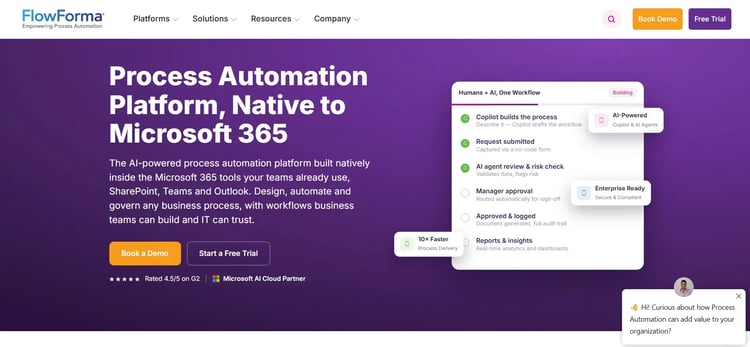
FlowForma homepage
For companies struggling with complex, multi-step processes, FlowForma provides a practical solution that puts control into the hands of business users.
You can quickly design workflows through a drag-and-drop interface without waiting on IT, while still maintaining compliance and visibility.
Additionally, our AI features help highlight potential workflow improvements and summarize progress for stakeholders. Integration with Microsoft 365 means all tools and teams stay connected, keeping processes transparent and efficient.
FlowForma’s Key Features
No-code workflow designer
Users can create multi-step workflows using a drag-and-drop interface, avoiding technical bottlenecks. It supports sequential and parallel task management, conditional routing, and automated notifications, helping teams deploy processes quickly while still retaining IT oversight.
AI-powered workflow creation
With our AI capabilities, you receive guidance while building workflows instead of starting from a blank canvas. Copilot helps you structure workflow logic by understanding natural language prompts.
We also offer AI-powered summarization, which allows you to generate clear summaries of workflows and process activity so stakeholders can understand what’s happening without reviewing every step.
Alongside this, our Agentic AI capabilities introduce AI agents that can analyze workflows and surface improvement opportunities.
Document generation
You can automatically produce reports, contracts, letters, and other business documents from workflow data. Our document generation feature reduces manual formatting, ensures consistent documentation, and integrates outputs directly with SharePoint libraries.
Compliance and audit trails
Every workflow action is recorded with timestamps and user details. It helps maintain regulatory compliance, simplifies audits, and allows administrators to monitor process adherence.
Microsoft 365 Integration
FlowForma connects natively with Teams, Outlook, and SharePoint, enabling automated communications and a single source of truth across the organization.
FlowForma’s Pros
- Intuitive interface allows non-technical users to design workflows quickly
- Pre-built templates save time for common business processes
- Seamless integration with Microsoft 365 increases adoption and efficiency
- AI support streamlines the creation of complex processes and reduces human error
- Built-in analytics and reporting capabilities
FlowForma’s Cons
3. Nintex
Best For: Enterprises needing advanced workflow automation and process mapping
Nintex homepage
Large organizations often manage processes that span multiple departments and systems. Coordinating these steps manually can create delays and reduce visibility into how work progresses. Nintex addresses this challenge by providing workflow automation combined with process mapping and document generation capabilities.
Teams can design workflows that reflect complex operational requirements while maintaining clear oversight of each step. The platform is commonly used in environments where processes follow defined rules and where IT teams are available to support implementation and governance.
Nintex’s Key Features
Enterprise workflow design
Nintex allows teams to configure workflows with detailed rules, conditional branching, escalation paths, and parallel tasks. Complex approval structures can be represented directly in the workflow design, helping organizations manage processes that involve multiple roles or departments.
Robotic process automation (RPA)
Built-in RPA capabilities handle repetitive tasks that normally require manual system interaction. Activities such as copying data between applications or processing routine records can be executed automatically, reducing the likelihood of manual entry errors.
Automated document generation
Workflow data can populate templates to produce documents such as contracts, internal forms, or compliance records. Generated files can be stored directly in SharePoint libraries or other connected repositories, helping maintain consistent documentation across processes.
Process visualization and performance insights
Process mapping tools display workflows in visual diagrams that make complex procedures easier to understand. Operational dashboards provide visibility into workflow activity, allowing managers to review execution times and identify areas where processes may be slowing down.
Nintex’s Pros
- Strong fit for organizations that manage structured processes with multiple approvals or system interactions
- Visual process mapping helps teams understand how workflows operate and where delays occur
- Automation capabilities extend beyond simple task routing by supporting document generation and system-level tasks
- Integration options allow workflows to operate across enterprise software environments
Nintex’s Cons
- Configuration often requires planning and technical oversight during implementation
- Pricing and deployment scope may be more suitable for larger organizations than for smaller teams
4. Zapier
Best For: SMEs looking for cross-platform SharePoint integrations

Zapier Homepage
Designed as an integration-first automation platform, Zapier allows organizations to connect SharePoint with a large ecosystem of cloud applications.
The platform focuses on linking systems together so that events in one application can trigger actions in another without requiring custom development. Workflows—called “Zaps”—automate routine coordination between tools, helping teams keep information synchronized across systems.
Zapier’s Key Features
Extensive application integrations
Zapier connects SharePoint with thousands of cloud applications across categories such as CRM, marketing automation, project management, and communication tools. Workflow triggers can automatically move data from SharePoint lists or libraries to other systems, reducing the need for manual transfers.
Multi-step workflow automation
Workflows can include several actions that occur after a trigger event. A change in a SharePoint list, for example, can initiate notifications, update records in another application, or create tasks in a project management tool, allowing processes to span multiple platforms.
User-friendly workflow builder
A visual interface allows users to configure workflows without programming knowledge. Teams can assemble triggers and actions through guided configuration, which makes it easier to experiment with automation and adjust processes as requirements change.
Automated notifications and task updates
Workflow steps can generate alerts, messages, or task updates in connected applications. Activities in SharePoint can automatically notify relevant stakeholders via collaboration or messaging tools, keeping teams informed without manual follow-ups.
Zapier’s Pros
- Flexible integration capabilities make it useful for organizations that rely on multiple cloud applications
- Setup process is accessible for business users without technical backgrounds
- Quick deployment allows teams to automate routine tasks without long implementation cycles
- Well-documented platform with a large user community and support resources
Zapier’s Cons
- Workflow depth may be limited for processes that require complex logic or detailed SharePoint customization
- Steep pricing, especially as usage grows
5. Kissflow
Best For: Non-technical teams needing visual workflow management

Kissflow homepage
Kissflow simplifies workflow automation with a visual, user-friendly platform. It is designed for SMEs that want to create, monitor, and track workflows without IT involvement.
Kissflow focuses on intuitive process design, collaboration, and real-time reporting, making it well-suited for departments such as HR, finance, and operations that need easy visibility into processes.
Kissflow’s Key Features
Visual workflow builder
With a drag-and-drop interface, you can map processes clearly, support approvals, handle parallel tasks, and use custom fields. Workflow creation becomes accessible to business users without technical knowledge.
Collaboration tools
Kissflow facilitates real-time comments, notifications, and task assignments. Teams can interact within workflows, reducing email chains and keeping all communication within the process context.
Customization options
The tool supports lightweight scripting and simple logic adjustments. Users can configure forms, notifications, and rules to match their process needs without complex development.
Analytics and reporting
Through dashboards and reporting, managers can have a complete overview of task status and overall process efficiency. They can quickly spot delays or inefficiencies and take corrective action.
Integration capabilities
You can connect Kissflow with other apps, including Microsoft 365, Slack, and cloud storage, allowing processes to interact with external tools while remaining easy to manage.
Kissflow’s Pros
- Intuitive visual interface for quick workflow creation by citizen developers
- Good customer support and training resources
- Collaboration and commenting features improve team visibility
- Real-time reporting helps managers monitor processes effectively
Kissflow’s Cons
- Not fit for advanced customization or scaling workflows
6. Creatio
Best For: Mid-sized businesses needing CRM-focused automation

Creatio’s homepage
Organizations that manage a large share of their workflows around customer relationships often choose Creatio. It combines low-code process automation with built-in CRM capabilities.
Sales, marketing, and service teams can design workflows that support customer interactions while automating internal tasks behind the scenes. The platform focuses on making process design accessible to business users while still allowing deeper customization when organizations need more complex workflows.
Creatio’s Key Features
CRM and operational workflow integration
Creatio connects customer relationship management with internal process automation. Workflows can coordinate sales activities, marketing campaigns, and service interactions while automatically updating records and triggering follow-up tasks.
Low-code customization
A low-code environment allows teams to modify workflows and data structures with minimal programming. Business users can adjust processes to meet internal requirements, while technical teams retain oversight when deeper configuration is required.
Visual process designer
The platform provides a graphical interface where teams can map workflows and customer journeys. Process steps and task assignments appear in a structured visual layout, helping users understand how work moves across departments.
Dashboards and analytics
Operational dashboards provide visibility into workflow performance and customer activity. Managers can review metrics such as pipeline progress or service workloads to identify delays and adjust processes accordingly.
API and integration support
Integration capabilities allow Creatio to connect with external systems, including financial platforms and collaboration software. Data can move between applications through APIs or prebuilt connectors, allowing workflows to operate across systems.
Creatio’s Pros
- Combines process automation with CRM functionality
- Low-code environment makes it adaptable for diverse business needs
- Easy-to-navigate interface supports adoption across departments
- Strong reporting and analytics support operational insights
- Native API and connectors simplify system integration
Creatio’s Cons
- Primarily focused on CRM-related workflows, limiting broader automation
- Some advanced automation features require technical setup
7. Bamboo Solutions
Best For: Teams needing project management automation within SharePoint
Bamboo Solutions’ Homepage
Designed as an add-on for SharePoint, Bamboo Solutions extends the platform with tools focused on project coordination and task management.
Teams that already manage documents and collaboration through SharePoint can use these extensions to organize project workflows, assign responsibilities, and track progress without moving to a separate project management system.
The platform is commonly used by organizations running multiple initiatives at once, where maintaining visibility over deadlines and responsibilities becomes important for keeping projects on schedule.
Bamboo Solutions’ Key Features
Project workflow templates
With preconfigured workflow templates, you can set up structured project processes inside SharePoint. Templates provide a starting framework for planning stages, approvals, and milestone tracking, allowing project teams to begin working with minimal configuration.
Task tracking and assignment
Task management capabilities allow managers to assign work and monitor completion directly within SharePoint lists. Status updates remain visible to the team, helping maintain accountability among project participants.
Reporting dashboards
Project dashboards present an overview of upcoming deadlines and milestone completion. Managers can review project activity through visual summaries, which help identify delays or resource gaps before they affect delivery timelines.
Collaboration support within SharePoint
Project communication can take place through SharePoint alerts, shared documents, and discussion threads connected to workflow activity. Keeping these updates within the same environment reduces the need for external tracking tools.
Bamboo Solutions’ Pros
Analyzed through vendor documentation and use cases
- Enhances SharePoint with project-specific automation features
- Improves visibility across multiple projects and teams
- Simplifies task assignment and progress tracking
- Integrates seamlessly with existing SharePoint sites
Bamboo Solutions’ Cons
Analyzed through vendor documentation and use cases
- Advanced customization may require technical expertise
- Some features are limited compared to full project management platforms
8. Boomi
Best For: SMEs needing enterprise system integration with SharePoint
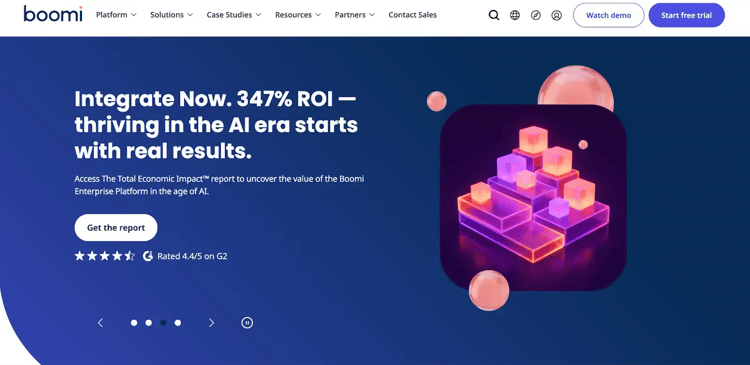
Boomi Homepage
Designed as an integration platform, Boomi helps organizations connect SharePoint with other operational systems that store business data, such as finance and HR.
Many companies manage documents in SharePoint while running core applications in separate platforms. Boomi acts as the layer that links these systems, so information can move automatically between them.
Instead of requiring manual updates across applications, integrations allow events in one system to trigger actions elsewhere.
Boomi’s Key Features
Cloud-native integration architecture
Boomi provides an integration framework that connects SharePoint with external business applications. Support for both cloud and on-premise environments allows organizations to synchronize information across systems without building custom integrations.
Automated process flows
Automation capabilities allow processes to run across connected systems. When data changes in SharePoint, workflows can trigger updates in other applications or initiate downstream actions across related platforms.
Prebuilt connectors for enterprise software
A library of connectors helps teams integrate SharePoint with commonly used business tools. These preconfigured connections reduce development effort and make it easier to establish integrations without writing extensive custom code.
Integration monitoring and operational visibility
Administrative dashboards provide visibility into integration activity. Execution logs allow IT teams to review transactions, identify failures, and maintain reliable system communication.
Data transformation and validation tools
Data moving between platforms can be formatted and validated automatically during integration. These capabilities help ensure records remain consistent when information flows between SharePoint and connected systems.
Boomi’s Pros
- Strong integration across multiple enterprise systems with pre-built connectors to simplify deployment
- Cloud-native design supports scalability and flexibility
- Provides detailed monitoring and process insights
- Low-code interface makes it easy for business users to design workflows and reduces manual data
handling
Boomi’s Cons
- Higher cost can be a barrier for small teams
9. SharePoint Designer
Best For: Organizations maintaining legacy SharePoint workflows
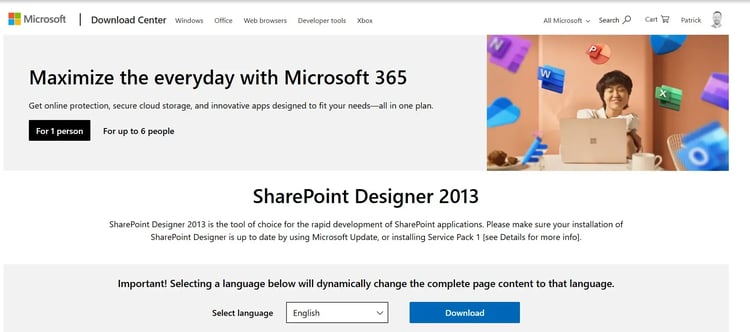
SharePoint Designer Homepage
SharePoint Designer is a legacy Microsoft tool historically used to build custom workflows directly within SharePoint sites. Although Microsoft has shifted automation toward newer platforms, many organizations still maintain workflows originally created with SharePoint Designer.
In environments where older SharePoint implementations remain active, the tool is sometimes used to manage or modify those existing processes rather than to create new automation.
SharePoint Designer’s Key Features
Custom workflow creation
SharePoint Designer allows users to configure rule-based workflows tied to SharePoint lists or document libraries. Actions such as approvals, status updates, or notifications can trigger automatically when specific conditions are met.
Visual workflow designer
A workflow editor displays the logic of each process step by step. While the interface reflects older SharePoint design standards, it still allows users to map how tasks progress through different stages.
SharePoint library integration
Workflows can operate directly within SharePoint lists and libraries. Document updates, metadata changes, and approval actions can trigger workflow steps tied to those records.
Notification and alert system
The tool sends emails or alerts when tasks require attention, reducing the need for constant manual follow-up. Teams can stay informed about approvals or document changes without checking SharePoint continuously.
SharePoint Designer’s Pros
(analyzed through vendor documentation)
- Reliable for creating simple workflows within SharePoint
- Familiar to teams already using SharePoint extensively
- Supports basic task automation and notifications
SharePoint Designer’s Cons
(analyzed through vendor documentation)
- Outdated interface and functionality
- No longer actively developed by Microsoft
- Limited support and documentation from Microsoft
10. Make
Best For: SMEs looking for a visual workflow builder with multi-app connectivity
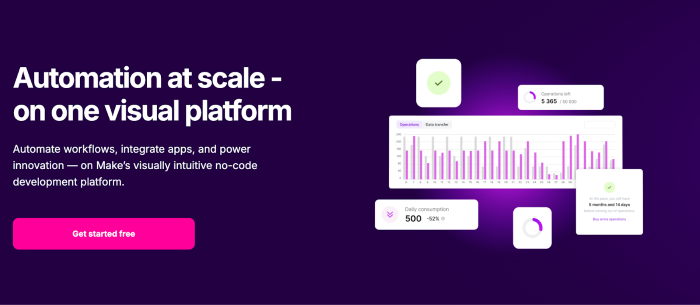
Make’s homepage
Make is a visual automation platform that allows businesses to design workflows connecting SharePoint with a wide range of apps. Its intuitive interface and conditional logic make it ideal for automating repetitive processes without deep technical knowledge.
Make’s Key Features
Visual scenario builder
You can create workflows through a visual interface where each automation step appears as a connected module. Users can map how information moves between systems while seeing the full workflow structure in one place.
Multi-app connectivity
Make allows SharePoint to interact with a wide range of external applications. Changes to SharePoint data can trigger actions in other tools, enabling information to flow between systems without manual updates.
Custom logic and workflow conditions
Filtering and branching capabilities allow workflows to respond to specific data conditions. Automation steps can change depending on values stored in SharePoint records or updates occurring in connected applications.
Execution monitoring and error tracking
Operational dashboards display workflow activity as it runs. Users can review execution history and receive alerts when a process fails, which helps teams identify and correct issues quickly.
Expandable workflow design
Automation scenarios can begin as simple workflows and expand into larger processes as requirements grow. Additional steps or integrations can be added without rebuilding the workflow structure.
Make’s Pros
- Visual workflow design makes automation easier to understand and maintain
- Integration support allows SharePoint workflows to interact with many external tools
- Flexible automation logic helps teams adapt workflows to changing operational needs
- Pricing structure can work well for smaller teams starting with automation
Make’s Cons
- Workflow complexity may be limited compared with enterprise automation platforms
- Higher usage levels may require upgrading to paid plans with expanded capacity
Key Factors to Consider When Choosing a SharePoint Automation Tool
Choosing a SharePoint automation platform can influence how smoothly internal processes run and how easily teams manage document-driven work. Beyond pricing and feature lists, it helps to look at how well a tool fits existing workflows and operational needs.
Customization and workflow flexibility
Different departments often follow their own approval paths and process rules. A suitable automation tool should allow workflows to be adjusted without extensive development work. Visual workflow builders and configurable logic help teams modify processes when requirements change.
Integration with existing systems
Automation becomes more valuable when workflows can interact with other business applications. Many businesses need SharePoint processes to exchange information with systems that manage operational data. Integration capabilities determine whether workflows remain limited to SharePoint or operate across connected platforms.
Security and governance capabilities
Automated workflows often involve internal records or sensitive business documents. Access permissions, activity logs, and governance controls help maintain oversight of how workflows run and who interacts with critical information.
Tools with built-in compliance and governance capabilities are quite important here, as they ensure adherence to regulatory requirements, such as GDPR, HIPAA, or DORA.
Ease of use for operational teams
Daily users often include employees who are not technical specialists. A clear interface and straightforward workflow configuration help teams adopt automation more quickly and reduce dependence on IT teams for routine process updates.
At FlowForma, we offer no-code automation but understand the importance of IT supervision. While citizen-developers can design workflows with ease, we ensure any anxieties about governance are mitigated through IT oversight.
Vendor support and documentation
Reliable documentation and responsive support can make a significant difference during implementation and troubleshooting. Teams often evaluate the availability of training materials, support channels, and user community feedback before selecting a platform.
FlowForma provides a no-code platform designed to help businesses build and manage workflows within Microsoft 365 and SharePoint environments.
We focus on enabling business teams to create and modify workflows without relying heavily on technical resources while still maintaining visibility and control over process execution.
- No-code workflow builder: We offer a visual workflow builder that lets users design processes using a drag-and-drop interface.
- Pre-built process templates: We provide templates for common business processes such as approvals or document handling. These templates help teams set up workflows more quickly and adjust them to match internal requirements.
- Reporting and process visibility: FlowForma includes reporting tools that show workflow status and highlight delays or stalled steps. The visibility helps teams track how processes move through different stages.
- Scalable deployment model: With a process-based pricing structure, we support companies that wish to expand their usage as teams grow.
- AI-assisted workflow support: Our AI capabilities can assist with process design and improvements. These features aim to help teams review workflow activity and identify opportunities for refinement.
Ready to give FlowForma a try? Book your demo today.