First impressions make a lasting impact, particularly in client onboarding.
A good onboarding experience sets expectations, builds trust early, and shapes whether customers stick around long enough to renew and advocate for you. Within regulated industries, onboarding comes with extra pressure, as you’re often left juggling approvals, identity checks, data-handling rules, and documented sign-offs.
A solid client onboarding platform gives you a structured path from kickoff to go-live, with clear ownership, automated nudges, and a record of what happened, when, and why.
With the customer onboarding market expected to reach $22.26 billion by 2031, we have reviewed 10 widely used software options, including our own tool, FlowForma.
We break down what each platform is best for, the key features that matter in real onboarding workflows, and the pros and cons you should weigh before you commit.
Client Onboarding Software Comparison Table
Before going into details, here's a side-by-side comparison of the best client onboarding tools:
|
Product Name
|
Best For
|
Key Features
|
Ease of Use
|
|
Creatio
|
CRM + BPM integration
|
CRM + BPM, AI tools, omnichannel engagement
|
Medium
|
|
Softr
|
SMBs looking for simple, no-code solutions
|
Airtable-based client portals, no-code UI
|
Very easy
|
|
Pipefy
|
Operations teams needing visual workflows
|
Kanban flows, SLAs, email automation
|
Easy
|
|
FlowForma
|
Mid and large-sized businesses needing no-code automation
|
No-code, AI Copilot, Microsoft 365 native
|
Very easy for business users
|
|
Camunda
|
Developers needing process orchestration
|
BPMN engine, open-source, dev-first
|
Difficult (developer-focused)
|
|
Kissflow
|
Small teams with simple workflows
|
Forms, workflows, case management
|
Easy
|
|
MS Power Platform
|
Microsoft-centric organizations
|
App builder, flows, Teams integration
|
Easy (with Microsoft tools)
|
|
Zoho Creator
|
Businesses needing custom app building
|
App builder, scripting, dashboards
|
Medium
|
|
Nintex
|
Enterprises with complex workflows
|
Advanced automation, eSignatures, document generation
|
Medium to difficult
|
|
Tonkean
|
Large enterprises with AI needs
|
AI orchestration, enterprise operations
|
Medium (AI-powered)
|
How We Built This List
We shortlisted these tools using analyst input and vendor documentation to validate what each product supports in real-world deployments.
The lens was simple: can the platform handle real onboarding conditions (multiple stakeholders, exceptions, regulated requirements, audit trails), or does it only work in a clean demo?
Each tool was evaluated on how well it supports:
- Workflow Structure and Ownership
- Approvals and Auditability
- Client-Facing Experience
- Automation And Nudges
- Data Collection and Validation
- Integrations and Ecosystem Fit
- Reporting and Visibility
- Security and Access Control
Based on our evaluation, here are the 10 widely used tools for client onboarding:
|
1. Creatio
Best For: Teams that want client onboarding tied closely to CRM activity and customer lifecycle management.
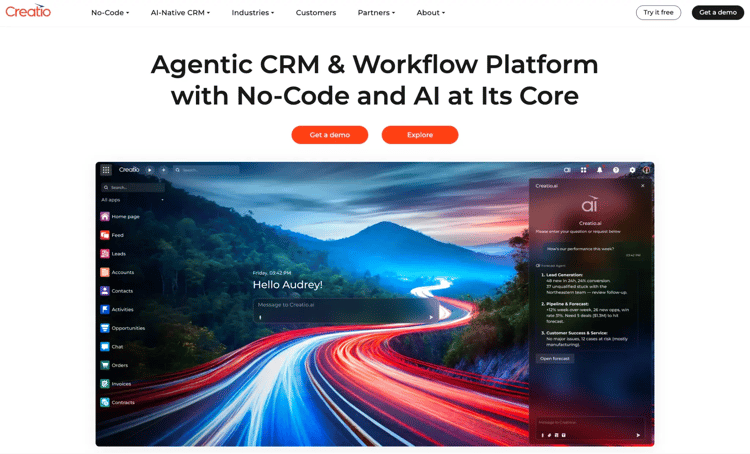
Creatio Homepage
Combining CRM modules with workflow automation, Creatio works well when onboarding is owned by revenue and customer success teams. Data captured during onboarding can feed directly into sales, service, and account management workflows.
Organizations using Creatio often treat onboarding as part of a wider customer operating model. Setup tends to suit teams comfortable with configuring processes inside a broader platform.
Creatio’s Key Features
1. CRM and process automation in one platform
Onboarding tasks can link directly to account and opportunity data, which keeps context close to the work. Teams can avoid re-entering client details across tools when ownership shifts from sales to delivery.
2. Process designer and business rules
Teams can configure onboarding paths that reflect how work actually runs, such as different steps for enterprise clients or regulated regions. Rules can route tasks based on form responses and record attributes.
3. AI and analytics capabilities
Creatio includes automation and intelligence features that support routing, prioritization, and reporting. Teams can monitor onboarding performance using dashboards tied to customer data.
4. Customer portals and omnichannel engagement
Clients can interact through portals and structured touchpoints instead of relying on email updates. Service teams can manage onboarding communication across channels with clearer context.
Creatio’s Pros
- Strong option when onboarding needs to connect tightly with CRM and service workflows
- Flexible process configuration for different onboarding playbooks
- Reporting can pull from both onboarding and customer lifecycle data
- Broad customization options
Creatio’s Cons
- Some training and admin effort is common before teams feel confident building flows
- Broader platform scope can feel heavy if the only goal is onboarding
Best For: Mid-market and enterprise teams that need structured, compliant onboarding workflows in a Microsoft 365 environment
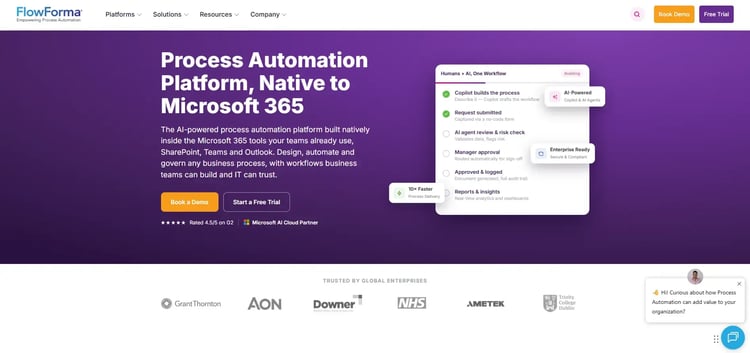
FlowForma homepage
FlowForma is an AI-powered platform that supports no-code workflow creation, including client onboarding. You can capture client data through smart forms, route work through approval steps, and keep a clear audit record across every handoff.
With Microsoft 365 and SharePoint integration, you can keep onboarding work inside the tools you already use. While business teams can build and improve workflows, IT keeps governance and oversight in place.
FlowForma’s Key Features
1. No-code workflow builder
Business teams can design each onboarding stage in a no-code workflow builder and define how work moves between teams without relying on developers.
The platform supports structured handoffs, controlled routing, and clear ownership at every step, so onboarding progresses in a consistent and auditable way.
2. Automated document generation
You can create critical onboarding documents such as contracts and other onboarding documents directly within the workflow, eliminating the need for manual document generation.
3. AI for faster process setup
FlowForma’s AI Copilot and Agentic AI make client onboarding faster and user-driven. With AI Copilot, users can provide natural language instructions to build entire onboarding processes, such as client data collection, approval workflows, and document generation.
This accelerates deployment and reduces reliance on IT. Watch this demo to learn more. Additionally, Agentic AI offers intelligent, context-aware assistance throughout the onboarding process. It responds to user queries and suggests improvements.
4. Audit trails and compliance tracking
Every action can be recorded with time stamps and user context, which helps regulated teams prove what happened during onboarding and ensure adherence to GDPR. Approval history and form submissions remain searchable for reviews and audits.
FlowForma’s Pros
- Strong fit for regulated onboarding needing traceability and structured approvals
- Business teams can build workflows while IT retains governance
- Microsoft 365 alignment reduces tool sprawl for many organizations
- Process-based pricing supports scaling across multiple onboarding workflows
FlowForma’s Cons
- Advanced customization comes with a learning curve
3. Kissflow
Best For: Smaller teams that want to manage simple onboarding tasks
Kissflow's homepage
When onboarding needs structure but does not require deep orchestration or developer-led integration, Kissflow works well.
Teams can set up forms, define a workflow, assign roles, and track completion through a simple interface. Many teams use it to replace spreadsheets and inbox coordination with a single place to manage onboarding work. More advanced requirements often depend on plan level and configuration depth.
Kissflow’s Key Features
1. Form intake with validations
Teams can collect client details and documents through configurable forms. Validation rules help reduce back-and-forth caused by incomplete submissions.
2. Workflow templates for quick setup
Prebuilt templates support quick setup for common onboarding steps. Task routing helps teams move work across stakeholders.
3. Role-based access
Permissions can limit access to onboarding data and control who can approve steps, supporting clearer responsibility when multiple teams touch onboarding.
4. Reporting and basic analytics
Reporting highlights what is in progress and what is stuck. Teams can use these views to manage workload and avoid last-minute escalations. More detailed reporting tends to require higher tiers.
Kissflow’s Pros
- Quick to set up for teams that want structure fast
- Friendly UI for non-technical users
- Useful for simple onboarding flows that rely on forms and pre-built templates
Kissflow’s Cons
- Advanced logic and deep reporting can be limited depending on the plan tier
- Larger, regulated onboarding programs may outgrow basic workflow depth
4. Nintex
Best For: Enterprises that need workflow automation, document generation, and eSignature as part of onboarding
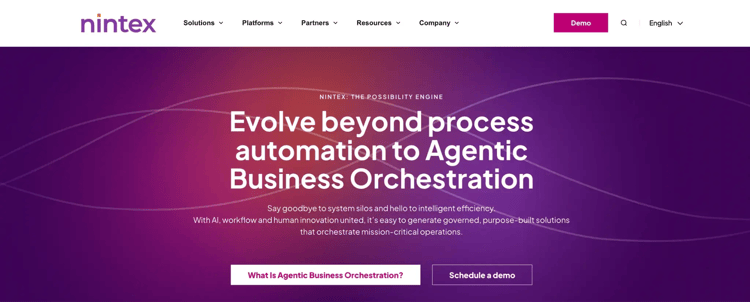
Nintex homepage
When onboarding depends on formal documentation and structured approvals, Nintex is a perfect fit.
Workflow design can cover multi-step approvals, data capture, and document handling across departments. Teams often adopt it as part of broaderprocess automation, and implementation typically requires stronger administrative ownership.
Nintex’s Key Features
1. Advanced workflow automation
Workflows can model complex onboarding paths with branching logic and escalations. Teams can handle multi-team sign-offs across legal, finance, and operations.
2. Document generation and e-signature
Onboarding paperwork can be generated from captured data and routed for signature. Besides, signature workflows can be built into onboarding, so contracts move forward without side processes. Consolidating documents and approvals helps reduce manual version handling.
3. Process mapping and documentation
With Nintex, you can document onboarding steps, policies, and SOPs alongside workflow execution. Process documentation helps standardize onboarding across teams and regions.
4. Enterprise integrations
Nintex supports integrations across common enterprise systems, including SharePoint and other line-of-business tools. Integrations help reduce manual copy-paste between onboarding and core systems.
Nintex’s Pros
- Strong for document-heavy onboarding with approvals and sign-offs
- Works well for enterprise process standardization across teams
- Mature automation capability for complex workflows
Nintex’s Cons
- Learning curve can be steep for business users without admin support
- Pricing and packaging can be hard to forecast without a detailed scope
5. Camunda
Best For: Organizations that need developer-led onboarding orchestration
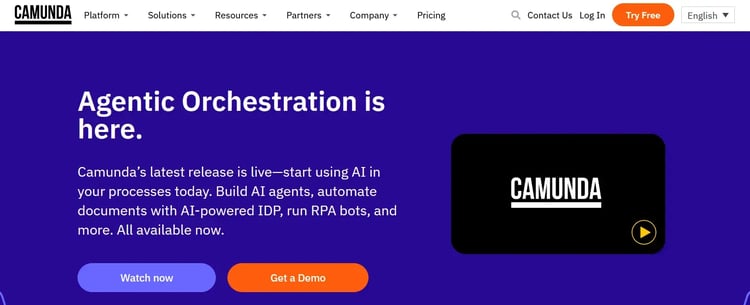
Camunda’s homepage
A process orchestration engine, Camunda is well-suited to onboarding flows that span backend services, APIs, and event-driven architectures. Teams can model onboarding logic in BPMN and execute processes at scale with tight control.
Business users usually need a separate front-end or portal layer because Camunda focuses on orchestration, not UI.
Camunda’s Key Features
1. BPMN-based process orchestration
Teams can model onboarding workflows with clear process logic and state handling. Process definitions support long-running workflows, exceptions, and retries.
2. APIs and developer tooling
REST and Java APIs support custom integrations with internal systems. Technical teams can embed onboarding logic directly into the product and operations stacks.
3. Event-driven triggers
Onboarding can react to system events, such as identity verification completion or account provisioning. Teams can reduce manual coordination by letting systems trigger the next step.
Scalable deployment options
Camunda supports modern deployment patterns for scaling. Organizations can run orchestration alongside existing cloud infrastructure.
Camunda’s Pros
- Strong control and scalability for mission-critical onboarding orchestration
- Works well in microservices and event-driven environments
- Open-source roots with an active developer ecosystem
- Integrates with existing systems
Camunda’s Cons
- Steep learning curve
- Requires engineering ownership for build, maintenance, and changes
6. Microsoft Power Apps + Power Automate
Best For: Microsoft-first organizations that want to build onboarding apps inside the Microsoft ecosystem
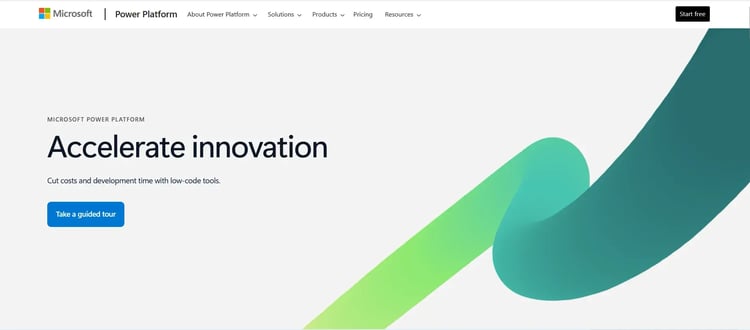
Microsoft’s Power Platform
Power Apps and Power Automate work well when teams want to build onboarding tools inside Microsoft. Power Apps can handle forms and internal screens, while Power Automate can route tasks and approvals.
Basic onboarding flows can work well with templates and connectors. Complexity grows when onboarding spreads across multiple flows, apps, and data sources, so governance matters early
Microsoft Power Platform’s Key Features
1. Custom onboarding with Power Apps
Teams can build intake forms, dashboards, and internal onboarding tools. Apps can support role-based screens for sales, legal, finance, and customer success.
2. Workflow automation with Power Automate
Power Automate can route approvals and notifications based on data events and form submissions. Automation helps reduce manual follow-up across onboarding steps.
3. Dataverse and Microsoft data connectors
Dataverse can store onboarding records and support a structured data model. Connectors help integrate onboarding with Microsoft tools and selected third-party systems.
Microsoft Power Platform’s Pros
- Strong fit when Microsoft 365 is already the core environment
- Enables automation of repetitive tasks without extensive coding knowledge
- Flexible for building custom onboarding apps and internal tools
- Large connector library and Microsoft ecosystem coverage
Microsoft Power Platform’s Cons
- Complex onboarding can sprawl across multiple components, which raises admin overhead
- Advanced use cases often require developer support and careful licensing planning
7. Softr
Best For: SMBs that want a lightweight client portal and onboarding experience built quickly with minimal setup
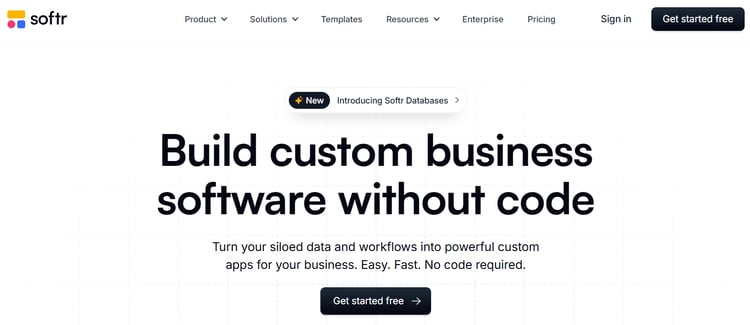
Softr homepage
Softr offers a quick way to publish a client portal that shows onboarding steps and collects inputs. It suits service teams that want a polished front end without building a full product.
The backend depends on Airtable or Google Sheets, so data governance and audit needs depend heavily on how that foundation is set up.
Regulated onboarding with strict audit and governance requirements often needs a more process-native platform.
Softr’s Key Features
1. Client portals built on Airtable or Sheets
Teams can present a clean, client-facing experience through a simple portal that shows next steps and status. Clients get visibility without needing email-based updates for every step.
2. Authentication and role controls
You can control user access through login and role permissions. Basic permissioning supports separating internal views from client views.
3. Templates for fast setup
Softr provides templates for portals and onboarding apps that reduce setup time. Teams can start with a working structure and adjust fields and pages.
4. Integrations via Zapier and APIs
Automation can be implemented via Zapier or API integrations. Teams can trigger follow-ups or sync data to other tools when onboarding steps change.
Softr’s Pros
- Intuitive interface allows you to publish client onboarding portals without development
- Affordable entry point for smaller teams
- Useful for simple, portal-first onboarding flows
Softr’s Cons
- Data governance depends heavily on the underlying database setup
- Limited customization options
8. Pipefy
Best For: Operations teams that want visual workflow tracking for onboarding, with SLAs and automation for follow-ups
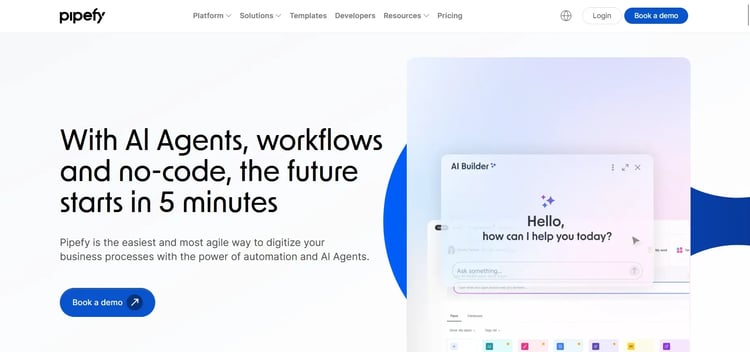
Pipefy’s homepage
Pipefy supports onboarding through structured pipelines that are easy to understand and manage. Boards show what is in progress and what is stuck, which works well when onboarding moves through clear stages.
It suits operational teams that care about visibility and SLAs more than deep orchestration.
Pipefy’s Key Features
1. Visual workflow pipelines
Teams can define onboarding stages and track items as they move from kickoff to completion. Visual boards help managers spot bottlenecks quickly.
2. SLA management and automation triggers
SLAs can highlight overdue steps and drive escalations. Automation triggers can create tasks, send messages, and route items based on stage changes.
3. Email templates and follow-up automation
Your team can standardize onboarding communication with templates and automated follow-ups for stakeholders, reducing the need for manual reminders.
4. Dashboards and reporting
Reporting can show cycle time, throughput, and bottlenecks across onboarding work. Visibility helps operations teams manage workload and improve throughput.
Pipefy’s Pros
- Visual workflow tracking that suits operations-led onboarding
- Quick automation setup without needing coding or complex configurations
- Friendly UI for teams replacing spreadsheets and inbox tracking
Pipefy’s Cons
- Advanced features are gated behind a higher pricing tier
9. Zoho Creator
Best For: Teams that want to build custom onboarding apps and workflows within Zoho
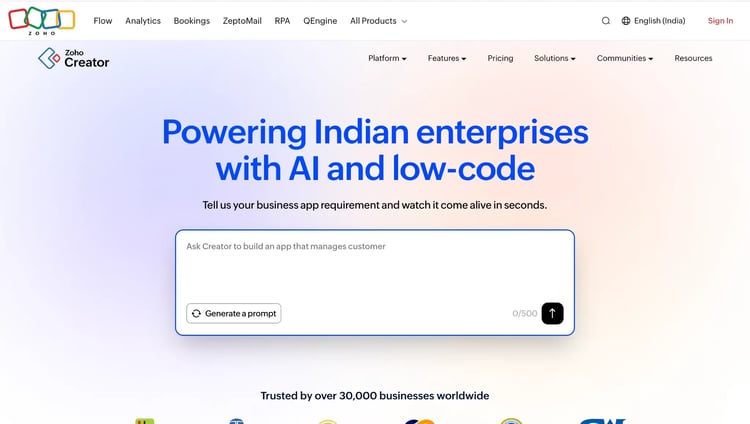
Zoho Creator Page
Zoho Creator supports custom onboarding apps that can include forms, approvals, dashboards, and integrations with Zoho CRM and other Zoho tools.
Teams can start with low-code building blocks and add scripting where needed. Onboarding experiences can be tailored for specific client types and workflows. However, more complex logic usually depends on technical comfort with configuration and Deluge scripting.
Zoho Creator’s Key Features
1. Custom app building for onboarding
Teams can build onboarding apps with custom screens, forms, and workflow steps. Apps can match the organization's onboarding playbook rather than forcing a generic process.
2. Workflow rules for internal routing
Rules can route onboarding work to the right team based on submitted data. Teams can reduce manual triage by automating who receives what.
3. Dashboards and reporting
Your team can track onboarding progress and completion metrics through built-in dashboards. Reports can support operational reviews and workload planning.
4. Zoho ecosystem integrations
Integration works well across Zoho CRM, Zoho Books, and related tools. Teams using the Zoho stack can connect onboarding to the wider customer lifecycle.
Zoho Creator’s Pros
- Strong value when Zoho is already part of the operating stack
- Flexible app building for tailored onboarding processes
- Good for teams scaling their operations
Zoho Creator’s Cons
- Complex workflows can require scripting and admin expertise
- Slow customer support
10. Tonkean
Best For: Enterprise operations teams that manage cross-functional onboarding
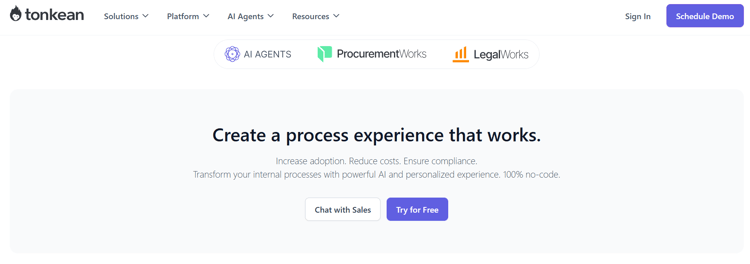
Tonkean Homepage
Designed for process orchestration, Tonkean helps people and systems stay aligned without constant manual follow-ups.
In client onboarding scenarios, it connects work across tools, routes tasks through Slack or Microsoft Teams, and handles exceptions using structured logic.
It fits best when onboarding involves multiple departments, and coordination tends to slow progress. Pricing and rollout generally suit larger teams and enterprise environments.
Tonkean’s Key Features
1. Human-in-the-loop orchestration
Tonkean supports onboarding processes where people still make decisions at key steps. Workflow logic can guide work through reviews and approvals while keeping accountability clear.
2. Tool and system integrations
Connectors and APIs can sync onboarding work across many business systems. Integration helps reduce copy-paste work and improves handoff clarity.
3. Task delivery in work hubs
Tasks can arrive in Teams or Slack, so stakeholders can act faster. Reduced context switching helps onboarding stay on track.
4. Visibility and reporting for operational control
Reporting can show bottlenecks, workload, and cycle times across onboarding programs. Operations leaders can use that visibility to improve capacity planning and execution.
Tonkean’s Pros
- Strong for cross-functional onboarding with many handoffs and exceptions
- Fits teams that want to run onboarding through existing work hubs like Teams or Slack
- Useful for enterprise operations models managing many stakeholders
Tonkean’s Cons
- Setup and onboarding can take time for teams new to orchestration-style tools
- Custom pricing tends to fit enterprise budgets more than small teams
Key Features Of Client Onboarding Software
Client onboarding software works when it keeps work moving between teams and leaves a clear record of decisions.
These are the features that matter most in regulated onboarding:
Workflow automation
Onboarding involves handoffs across teams, with steps that must happen in the right order. Workflow automation assigns owners, routes work to the next stage, and sends reminders when deadlines slip.
Clear workflows also reduce the risk of skipped steps when onboarding volume increases.
Onboarding depends on accurate intake. Look for tools that support structured forms and required fields. Validation rules help catch errors at the point of entry.
Document handling should support file uploads and reliable version tracking. Many teams also look for document templates to keep standard paperwork consistent across clients.
Integration capabilities
Most onboarding programs touch on CRM, identity verification, eSignature, storage, and ticketing tools. Integration reduces duplicate entries and prevents mismatched records across systems.
API access and prebuilt connectors matter when onboarding must work across multiple departments and platforms.
Compliance and audit trail
Regulated onboarding requires proof. Audit trails should capture who completed each step and when it happened. Approval history should remain visible even after a workflow change. Role-based access supports controlled handling of sensitive data.
AI support where it saves time
AI features can help when they automate tasks that teams already do every day. Useful examples include extracting key fields from uploaded documents or flagging missing information before a file reaches review.
Pricing clarity and scalability
As onboarding volumes change, pricing should stay predictable so teams can add workflows, users, or client volume. Clear tier definitions and transparent add-on charges reduce budgeting surprises during rollout.
Steps in the Client Onboarding Process
A typical onboarding workflow follows a clear sequence. The exact steps vary by industry, but most programs include the stages below:
Step 1: Initial contact and welcome
Confirm scope, introduce stakeholders, share timelines, and set expectations for what happens next.
Step 2: Data collection and documentation
Gather required client information and supporting documents. Regulated teams often include KYC, contracts, and identity checks here.
Step 3: Review and approval workflows
Route submissions for internal review. Approvals usually involve legal, finance, security, or risk teams, depending on the account.
Step 4: Account setup and configuration
Provision access, configure roles, and set up integrations or environments needed for delivery.
Step 5: Training and orientation
Provide training materials, walkthroughs, and enablement sessions so the client can use the product or service correctly.
Step 6: Go-live and handoff
Confirm readiness, activate the account, document decisions, and transition ownership to the ongoing support or account team.
Best Practices For Successful Client Onboarding
Here are the best practices that will make your client onboarding process more efficient:
- Standardize the process: Use a consistent workflow so every client gets the same baseline experience and internal teams follow the same steps.
- Automate reminders: Add nudges for owners and approvers, so onboarding does not rely on manual chasing.
- Keep communication relevant: Use the client’s context to send the right updates at the right time, without flooding inboxes.
- Track progress: Monitor stage-level completion and delays to identify bottlenecks early.
- Collect feedback: Ask for feedback during onboarding, not after it ends, then adjust the workflow based on patterns.
- Train internal teams: Make roles, responsibilities, and escalation paths clear, so handoffs stay clean.
- Prepare for exceptions: Define how to handle edge cases like missing documents, delayed sign-offs, or non-standard compliance steps.
Streamline Client Onboarding for Regulated Industries with FlowForma
Each platform in this list solves a slightly different onboarding problem, so the “best” choice depends on what breaks most often in your current process.
FlowForma is used by regulated teams in finance, healthcare, insurance, and construction to build client onboarding workflows that cover form-based intake, routing, approvals, and audit trails.
Our product is designed for organizations that run onboarding inside Microsoft 365, where SharePoint stores process data and Teams supports day-to-day collaboration.
Key points that typically matter in onboarding use cases include:
- No-code workflow build: Business teams can configure onboarding steps and ownership without writing code, while IT retains governance and oversight.
- Microsoft 365 alignment: Data and documents can stay in SharePoint, with Teams and Outlook used for collaboration and notifications.
- AI assistance: AI features can help speed up workflow setup and reduce manual effort in document-heavy steps, depending on the use case.
- Pricing structure: FlowForma uses process-based pricing, which can make forecasting easier as onboarding expands across departments
If FlowForma is on your shortlist, the practical test is straightforward: run an end-to-end onboarding workflow by booking a demo with us.