The best AI process automation tool that works with Microsoft 365 depends on the job. For complex, governed processes that business teams build themselves, it’s FlowForma Process Automation, which runs natively in SharePoint Online. Microsoft Power Automate is best for tasks and integrations, Nintex for existing Nintex users and self-hosting, and Kissflow for teams that want a separate cloud platform.
This guide compares four tools for automating business processes in Microsoft 365: FlowForma Process Automation, Microsoft Power Automate, Nintex, and Kissflow.
Most teams start looking at process automation for Microsoft 365 for one of two reasons. Either their simple flows can’t carry the work anymore, or their old SharePoint workflows and InfoPath forms need somewhere new to live.
All four tools connect to Microsoft 365, but they do it in very different ways, and their AI does different jobs. Below, I walk through how each tool works, how they differ head to head, and the questions that will help you decide.
Power Automate vs Nintex vs Kissflow vs FlowForma at a glance
|
Tool
|
Best for
|
Runs in Microsoft 365
|
Deployment
|
AI features
|
Who builds
|
Pricing model (as published)
|
Free trial
|
|
FlowForma Process Automation
|
Complex, governed business processes
|
Yes, natively in SharePoint Online
|
SharePoint Online
|
FlowForma Copilot, AI Agents, Smart Assistants, Summarization
|
Business teams, governed by IT
|
By process count, billed annually
|
30-day free trial, no credit card
|
|
Microsoft Power Automate
|
Task flows, integrations, RPA
|
Yes, a Microsoft product
|
Microsoft cloud, with desktop flows
|
Copilot in Power Automate, AI Builder
|
Makers and IT
|
Per user or per bot, paid yearly
|
30 days
|
|
Nintex
|
Existing Nintex estates, self-hosting
|
Connects via Nintex for Microsoft
|
Cloud (CE) or self-hosted (K2)
|
Agent Designer and Orchestration (CE)
|
Business and IT users
|
Pricing on request
|
30 days
|
|
Kissflow
|
Standalone cloud platform
|
Connects via connectors
|
Kissflow cloud
|
Kissflow AI, AI Copilot on Enterprise
|
Business and IT users
|
By plan, Enterprise custom-priced
|
Not stated
|
For most Microsoft 365 organizations, one question settles a lot. Do processes and data have to stay inside your tenancy? If they do, FlowForma Process Automation keeps process data in your SharePoint Online tenancy. Power Automate cloud flows run in Power Platform environments under your tenant’s admin and security controls. If you need to host workflows yourself, Nintex Automation K2 is the one to look at.
The 4 tools compared
I’ve listed these with Microsoft 365 organizations in mind, starting with the most closely integrated.
1. FlowForma Process Automation for complex, governed business processes inside Microsoft 365
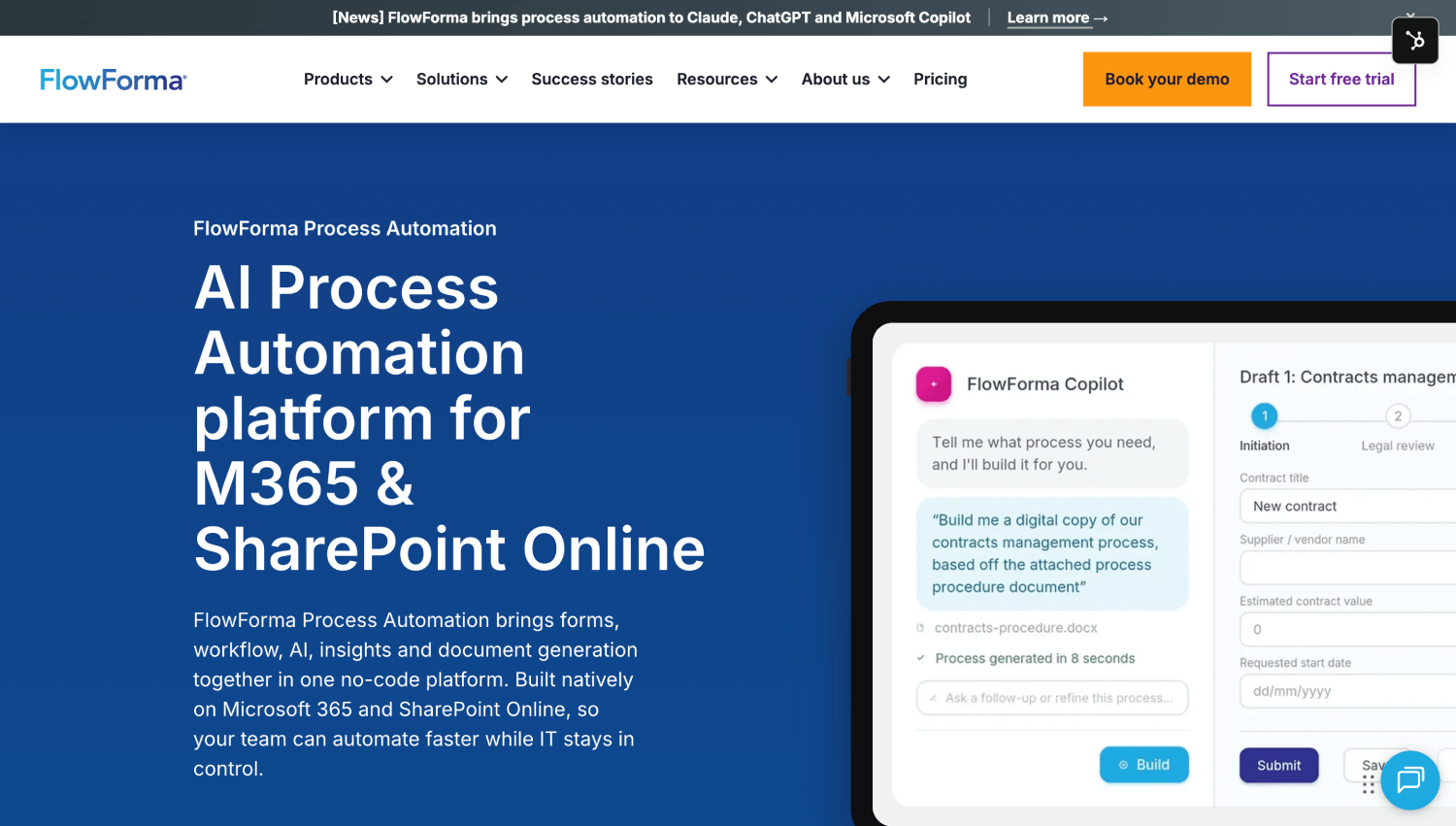
Flowforma Process Automation's homepage
FlowForma Process Automation is the best AI process automation tool for Microsoft 365 because business teams build complex, governed processes with no-code inside their own SharePoint Online tenancy, typically becoming self-sufficient within weeks.
FlowForma Process Automation is an AI-powered, no-code platform for automating business processes, built natively on SharePoint Online and Microsoft 365.
Think about what happens when someone new joins the company. HR fills in the starter details, IT sets up accounts and equipment, the line manager signs off, and a welcome pack goes out. In FlowForma, that’s one process, built by HR, with each step landing in the right person’s Teams or Outlook. The forms, approvals, and generated documents all sit together in SharePoint Online.
Of the four tools here, FlowForma is the only one that both runs inside your tenancy and gives business teams a single no-code designer for forms, approvals, and documents. Power Automate also runs in Microsoft 365, but it’s designed for makers and integrations, and the two often work together.
Key features
- It runs natively in Microsoft 365, with workflow data, forms, and documents kept in your own SharePoint environment.
- Tasks reach people in Microsoft Teams and Outlook, so approvers don’t have to go looking for them.
- Governance lets business teams build processes while IT keeps control, with audit trails throughout.
- It’s ISO/IEC 27001:2022 certified.
- It works alongside Power Automate, with FlowForma running the business process and Power Automate running the integrations.
AI features
- FlowForma Copilot, AI Agents, Smart Assistants, and Summarization. Copilot builds the form and workflow from a document, diagram, or notes, and the other three help people work through it.
- It’s built on Microsoft Azure OpenAI service.
- You can also build, optimize, and run governed processes directly from the AI assistant you already use, including Claude, ChatGPT, and Microsoft Copilot.
- FlowForma AI comes with the Professional and Enterprise plans and is an add-on on Essentials.
Published customer results
- At Aon, Product Manager Robbie Molloy says, “We can now build a fully functional flow in less than a day, which is much preferable to a six month project.”
- Downer New Zealand has 23 processes automated and over 3,350 development hours saved.
- Grant Thornton made job appraisals more than 60% more efficient, across 8 processes.
- Dresser Natural Gas Solutions now builds each new flow in 2 days, and gave 15% of the Document Controller’s time back.
- Eurofound is 75% quicker to build new workflows.
“Don’t let the initial investment be a blocker to transformation, once you digitalize 3 noteworthy processes with FlowForma Process Automation, you’ve already got your ROI.” Suzy Pinsent, Digital Transformation Consultant, PBCB
Pros
- The people who own a process can change it themselves, with IT signing off before it goes live.
- You get forms, workflow, document generation, AI, and reporting without bolting on extra tools.
- Workflow data, forms, and documents stay in the SharePoint Online environment your IT team already secures.
Cons
- It runs on SharePoint Online only. If you need to host workflows yourself, look at Nintex Automation K2.
- It’s designed for Microsoft 365 organizations, so it won’t suit teams working outside that environment.
Best for midsize and enterprise Microsoft 365 organizations running complex, multi-step processes with forms, approvals, and documents.
Pricing as published. Essentials starts from $2,347 per month, billed annually, for up to 3 processes. Professional starts from $3,293 per month, billed annually, for up to 30 processes. Enterprise pricing is based on your process estate. See published pricing.
How it works with Microsoft 365. FlowForma sits inside your Microsoft 365 tenancy. Processes live in SharePoint Online, and people work on them in Teams and Outlook.
Want to see how FlowForma Process Automation would run your processes inside Microsoft 365? You can try it free for 30 days, with no credit card needed. It starts with a short setup meeting, then you get one-to-one access to process experts.
Start free trial | Book your demo
2. Microsoft Power Automate for task automation, integrations, and RPA across Microsoft 365
Microsoft Power Automate's homepage
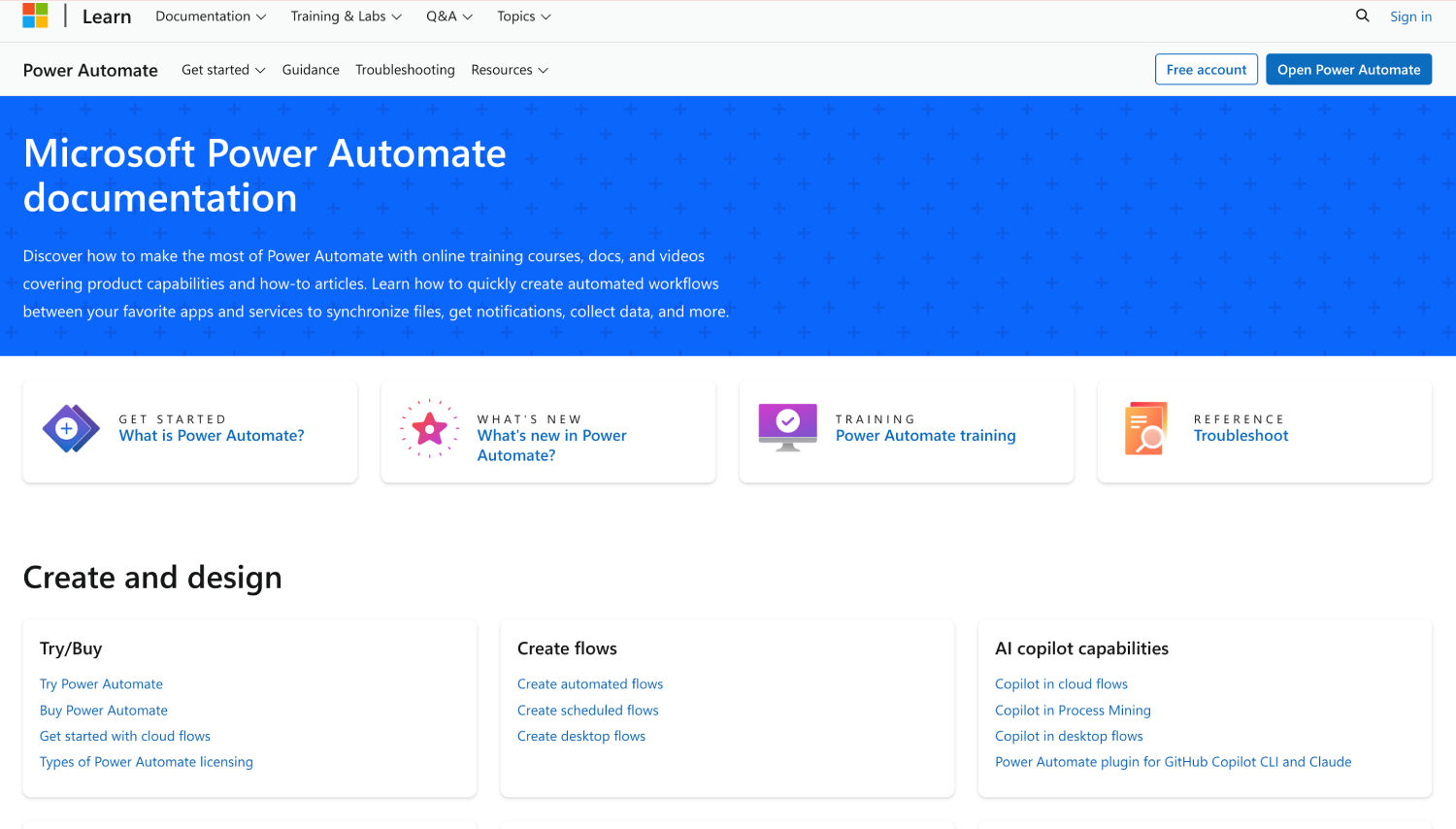
When the job is connecting apps, automating routine tasks, or running RPA, Microsoft Power Automate is the obvious place to start.
Microsoft Power Automate is Microsoft’s own automation service, and many Microsoft 365 teams already have access to it. Cloud flows start from an event, a schedule, or a button press, then run actions across Microsoft 365 and other apps through connectors. Desktop flows handle RPA in Windows applications, and process mining helps teams find which tasks are worth automating.
Its AI is aimed at building and enriching flows. Copilot creates and edits cloud and desktop flows from a plain-language description, AI Builder adds document processing, such as reading invoices or receipts, and flows can call agents built in Microsoft Copilot Studio. A team could describe “when a new invoice arrives in this mailbox, extract the details and add a row to this list” and have Copilot draft the flow.
Power Automate is built for flows and integrations, so complete business processes with rich forms, multi-stage approvals, and generated documents usually bring in Power Apps for the forms and sometimes Dataverse for the data. It works best with Power Platform makers on the team.
Compared with Nintex and Kissflow, Power Automate is the closest to Microsoft 365, because Microsoft builds it and sign-in and administration work the way your IT team expects. FlowForma Process Automation is both an alternative to Power Automate for medium to complex processes and works alongside it. FlowForma runs the business process, and Power Automate runs the integrations. For a direct comparison, read FlowForma vs Power Automate.
Key features
- Cloud flows that kick off from events, schedules, or a button press.
- Desktop flows for attended and unattended RPA.
- Standard, premium, and custom connectors for Microsoft and third-party apps.
- Process mining to spot automation opportunities.
AI features
- Copilot creates and edits cloud and desktop flows from plain language.
- AI Builder adds intelligent document processing to flows.
- Flows can call Microsoft Copilot Studio agents.
Pros
- Because Microsoft builds it, sign-in and administration work the way your IT team expects.
- Its connector library is wide enough for most system-to-system jobs.
- Cloud flows, RPA, and process mining all live in one service.
Cons
- It runs in Microsoft’s cloud, with desktop flows on your own machines.
- End-to-end processes with rich forms usually bring Power Apps into the picture too.
Best for IT teams and makers automating tasks, notifications, data movement, and RPA.
Pricing as published. Power Automate is licensed per user or per bot, paid yearly. A 30-day free trial is available.
How it works with Microsoft 365. It’s part of Microsoft’s own platform, so it connects across Microsoft 365 apps out of the box.
3. Nintex for existing Nintex estates and organizations that need self-hosting
Nintex's homepage
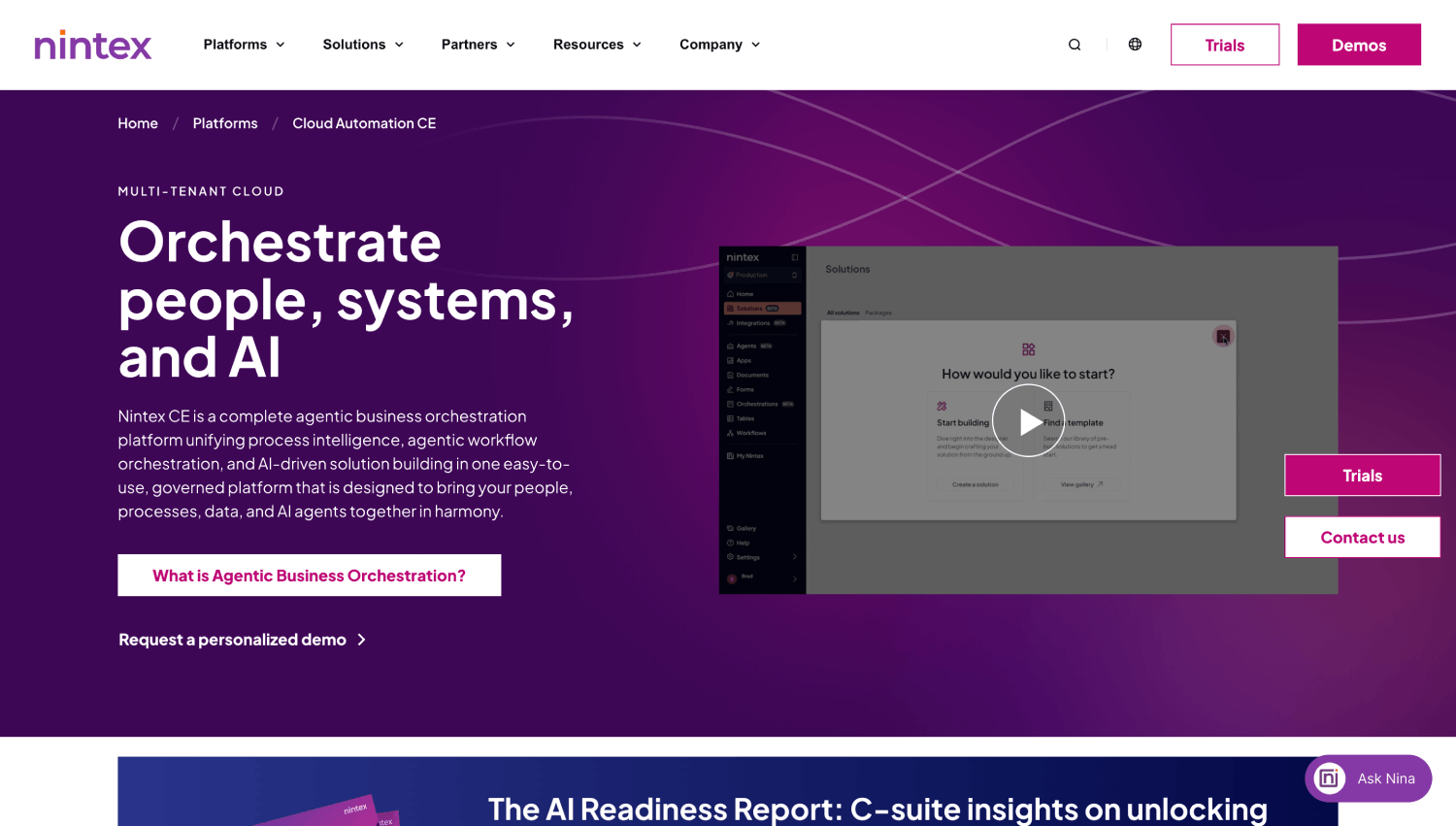
Nintex makes the most sense if you’ve already invested heavily in it, or if your workflows have to run on servers you control.
Nintex has a long history with SharePoint workflows, and today it comes in two main forms. Nintex Automation CE runs in the cloud, Nintex Automation K2 is self-hosted, and Nintex for Microsoft connects both to SharePoint, Teams, and other Microsoft 365 apps. Around the core workflow and forms, Nintex adds document generation for Microsoft Office files and connections to non-Microsoft systems.
On AI, Nintex Automation CE includes Agent Designer and Orchestration, and Nintex describes AI-powered automation across Microsoft 365 and Dynamics 365. In practice, Nintex’s AI sits within its own cloud edition, so organizations on the self-hosted K2 edition should check which AI features apply to them.
The most important recent change for Microsoft 365 users is the end of Nintex for Office 365. Support ended on December 31, 2025, and the add-in stopped running on April 2, 2026, so anyone still relying on it has to move, either to another Nintex product or to a different platform. If you choose Nintex Automation K2, your team also looks after the servers.
Compared with FlowForma, Nintex connects to Microsoft 365 from its own platform, while FlowForma runs inside your tenancy, and Nintex offers the self-hosting that FlowForma doesn’t. Compared with Kissflow, Nintex has more depth in document automation and a longer SharePoint track record, while Kissflow is quicker for business teams to start with.
Customers who’ve moved from Nintex to FlowForma tell us they wanted processes that are simpler to build and maintain inside Microsoft 365. Will Johnson, Head of Information Services at Morley College London, put it this way. “We needed to move beyond legacy systems like InfoPath and Nintex. With FlowForma, we didn’t just replace, we improved.” If you’re moving off Nintex, FlowForma offers Copilot-assisted migration plus 10,000 migration credits. Our FlowForma vs Nintex guide compares the two side by side.
Key features
- Forms, workflows, tasks, and document automation.
- Document generation for Microsoft Office files.
- Connections to Microsoft and non-Microsoft systems.
- Self-hosted workflow management with Nintex Automation K2.
AI features
- Nintex Automation CE includes Agent Designer and Orchestration.
- Nintex describes AI-powered automation across Microsoft 365 and Dynamics 365.
Pros
- You can choose between a cloud and a self-hosted edition from the same vendor.
- It has a long track record with SharePoint workflows.
- Its document automation range is broad.
Cons
- Anyone still relying on Nintex for Office 365 has to move, because it no longer runs.
- With Nintex Automation K2, your team looks after the servers.
Best for organizations with a large Nintex estate, or a requirement to self-host.
Pricing as published. Pricing on request, so you’ll need to contact Nintex. A 30-day free trial is available.
How it works with Microsoft 365. Nintex reaches SharePoint, Teams, and other Microsoft 365 apps through Nintex for Microsoft, while the processes themselves run in Nintex Automation CE or K2.
4. Kissflow for a standalone cloud low-code platform that connects to Microsoft 365
Kissflow's homepage
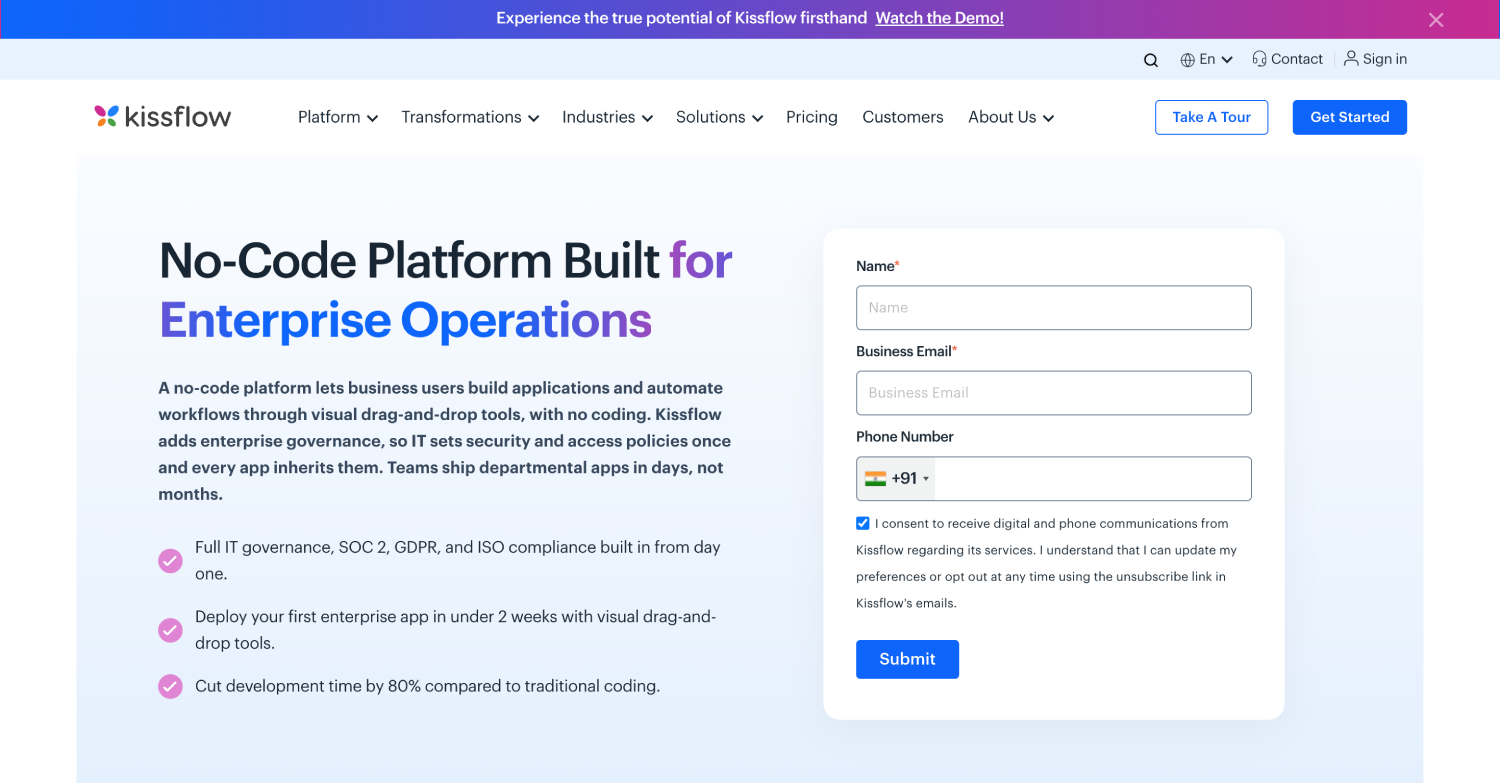
Kissflow works well for teams that want a separate cloud platform for workflows and apps, linked to the Microsoft 365 tools they already use.
Kissflow is a cloud platform for workflows, apps, and boards, with Kissflow AI built in. It runs in Kissflow’s own cloud and plugs into Microsoft 365 through prebuilt connectors for Teams, Outlook, SharePoint, OneDrive, and Excel, with sign-in through Microsoft Entra ID.
Its AI is aimed at getting started quickly. AI App Builder and AI Process Builder turn a plain-language prompt into a first draft of an app or workflow, and Kissflow Assist searches data across boards and processes. You can switch AI features off, and Kissflow says it doesn’t send customer transaction details to its AI models, which is worth knowing if data handling is a concern.
A typical Kissflow process might be a purchase request that a finance team sets up in a few hours, with a form, two approval steps, and a notification in Teams when it’s done. The connectors mean people can still work in familiar Microsoft 365 apps, even though the process itself runs elsewhere.
That separation is the main trade-off. Your process data sits in Kissflow’s cloud, outside your Microsoft 365 tenancy, and AI Copilot and the governance module are on the Enterprise plan, which is custom-priced.
Compared with FlowForma, Kissflow suits organizations happy to run processes outside their tenancy, while FlowForma keeps everything inside it. Compared with Power Automate, Kissflow gives business users a full process builder with forms and approvals, while Power Automate is stronger for integrations and RPA.
Key features
- A process builder for approvals and request workflows.
- App and form builders.
- Boards for tracking work.
- Prebuilt connectors, including Microsoft Teams, Outlook, SharePoint, OneDrive, and Excel.
AI features
- AI App Builder and AI Process Builder turn natural language prompts into apps and workflows.
- Kissflow Assist searches data across boards and processes.
- You can switch AI features off.
Pros
- Workflows, apps, and boards share one platform.
- Its AI tools help business users and IT alike.
- It works just as well outside Microsoft 365 as alongside it.
Cons
- It runs in Kissflow’s cloud, so your process data sits outside your Microsoft 365 tenancy.
- AI Copilot and the governance module are on the Enterprise plan, which is custom-priced.
Best for organizations that want a standalone platform connected to Microsoft 365 apps.
Pricing as published. Priced by plan, and Enterprise plans are custom-priced.
How it works with Microsoft 365. Kissflow is a separate platform that connects to Teams, Outlook, SharePoint, OneDrive, Excel, and Microsoft Entra ID through connectors.
Microsoft's own AI options: Copilot Studio and Microsoft 365 Copilot Workflows
Many Microsoft 365 organizations already have two more AI automation options from Microsoft itself.
Microsoft 365 Copilot Workflows lets people describe a task in plain language, and Copilot builds a working workflow across Outlook, Teams, SharePoint, Planner, and approvals. It suits personal and team tasks, such as summarizing unread emails into a Teams channel or creating a SharePoint list item when a form comes in.
Microsoft Copilot Studio is for building AI agents. Teams use it when people need a guided conversation, answers from approved knowledge, or structured intake, and its agents can call Power Automate flows to carry out the steps.
Use Copilot Workflows for quick task automation inside Microsoft 365, and Copilot Studio when the work starts with a conversation. FlowForma Process Automation works alongside both. When a request becomes a multi-stage process with forms, approvals, documents, and audit trails, FlowForma runs that process inside your SharePoint Online tenancy, and it can be built from Microsoft Copilot too.
Also consider
- UiPath: enterprise RPA and agentic automation for desktop and legacy applications.
- Zapier: no-code automation that connects thousands of cloud apps.
- Workato: enterprise integration and automation platform for IT teams.
- Make: visual builder for multi-step, branching automations across apps.
- n8n: developer-friendly workflow automation that you can self-host.
How the four tools differ
Whether you’re weighing Power Automate vs Nintex, Nintex vs Kissflow, or Power Automate vs Kissflow, the real differences come down to six areas.
Microsoft 365 integration and where data lives
This is where the four split most clearly. FlowForma runs natively in Microsoft 365, with workflow data, forms, and documents in your SharePoint environment.
Power Automate is a Microsoft service that works on data in the apps it connects. Nintex connects through Nintex for Microsoft, with processes running in Nintex Automation CE or K2. Kissflow keeps its own data in the Kissflow cloud and connects in.
AI features
All four now offer AI, but it does different jobs. FlowForma offers FlowForma Copilot, AI Agents, Smart Assistants, and Summarization, built on Microsoft Azure OpenAI service, which help people both build processes and work through them.
Power Automate uses Copilot to build flows and AI Builder to process documents. Nintex Automation CE includes Agent Designer and Orchestration, while Kissflow offers AI App Builder, AI Process Builder, and Kissflow Assist, mainly for getting started.
Who builds the processes
FlowForma is no-code and designed with process owners in business teams in mind. Power Automate is aimed at makers and IT. Nintex and Kissflow both pitch their designers at business and IT users.
Governance and audit
FlowForma has governance controls and audit trails built in, with IT approving what business teams create. Power Automate is governed through Microsoft’s Power Platform administration.
With Nintex Automation K2, workflows and data stay on infrastructure you manage. Kissflow’s governance module comes with its Enterprise plan.
Deployment
FlowForma runs on SharePoint Online only. Power Automate runs in Microsoft’s cloud, with desktop flows on your own machines or Microsoft-hosted ones. Nintex offers a cloud edition (CE) and a self-hosted one (K2), and Kissflow runs in its own cloud.
Pricing model and free trial
FlowForma prices by process count, billed annually, with a 30-day trial (published pricing). Power Automate prices per user or per bot, paid yearly, also with a 30-day trial.
Nintex prices on request and offers a 30-day trial. Kissflow’s Basic plan starts at $2,500 per month.
The short version. For complex, governed processes that must stay inside Microsoft 365, FlowForma Process Automation is the closest match, with Power Automate handling the integrations around it. If you need to self-host, look at Nintex Automation K2. If you’d rather have a separate cloud platform, look at Kissflow.
How to choose the right tool for Microsoft 365
Before you book a demo, it’s worth getting clear answers to these seven questions. Each one explains what to look for, what to ask, and which of the four tools suits each answer.
1. Must processes and data stay inside your Microsoft 365 tenancy?
Some tools run inside your tenancy and keep data in SharePoint Online. Others run in their own cloud and reach into Microsoft 365 through connectors. That difference shapes everything from security reviews to how users sign in.
If the answer’s yes, FlowForma Process Automation keeps process data in your SharePoint Online tenancy. Power Automate cloud flows run in Power Platform environments under your tenant’s admin and security controls. Nintex and Kissflow both connect to Microsoft 365 from their own environments. If you need on-premises hosting instead, Nintex Automation K2 is the self-hosted choice, and FlowForma Process Automation runs on SharePoint Online only.
2. Who will build and own the processes?
A tool that suits developers can frustrate an HR team, and the reverse is just as true. If process owners in HR, Finance, or Operations will build and change their own processes, FlowForma Process Automation and Kissflow are the most approachable. If makers and IT will own the work, Power Automate makes more sense.
In each demo, ask someone from your own team to change a real approval step. Whether they can do it without help is a better guide than any feature list.
3. Are these task flows and integrations, or end-to-end business processes?
Moving data between apps and triggering tasks is Power Automate’s home ground. End-to-end processes with forms, approvals, and documents are where FlowForma Process Automation comes in, and plenty of teams run the two side by side.
Nintex and Kissflow can both handle end-to-end processes from their own platforms, with Nintex stronger on document automation and Kissflow quicker to start.
4. What will AI actually do for you?
Good AI drafts processes, reads documents, and summarizes requests, while people still approve the outcome.
Ask each vendor whether its AI helps people run processes day to day, or mainly helps build them, and where the AI runs. FlowForma’s AI is built on Microsoft Azure OpenAI service, which matters to many Microsoft 365 security teams.
5. How will you govern AI and citizen-built processes?
It’s easy for a vendor to say governance is covered. You’ll want audit trails, version control, and IT sign-off before anything goes live, so ask each one to show you these working in a demo.
FlowForma Process Automation builds these into every process. Power Automate is governed through the Power Platform admin tools, and Kissflow’s governance module is on its Enterprise plan.
6. How well does it connect to the rest of your systems?
Check how each tool works with Teams, Outlook, SharePoint Online, and the line-of-business systems you rely on. List the systems your first few processes touch, and ask each vendor which have prebuilt connectors.
Power Automate has the widest connector library of the four, and FlowForma connects to SharePoint, Teams, Outlook, SAP, DocuSign, Oracle, and REST APIs, and works alongside Power Automate for anything else.
7. How is it priced, and what will three years cost?
Pricing models vary a lot here. FlowForma prices by process count, Power Automate by user or bot, Kissflow by plan, and Nintex on request. Take your real process list to each vendor and ask for a three-year price, including setup and the time needed to maintain processes.
Then test before you buy. FlowForma Process Automation, Power Automate, and Nintex all offer 30-day free trials.
See FlowForma Process Automation in your own tenancy
Want to see how FlowForma Process Automation would run your processes inside Microsoft 365? You can try it free for 30 days, with no credit card needed. Just sign in with your Microsoft 365 work account to get started.
Start free trial | Book your demo